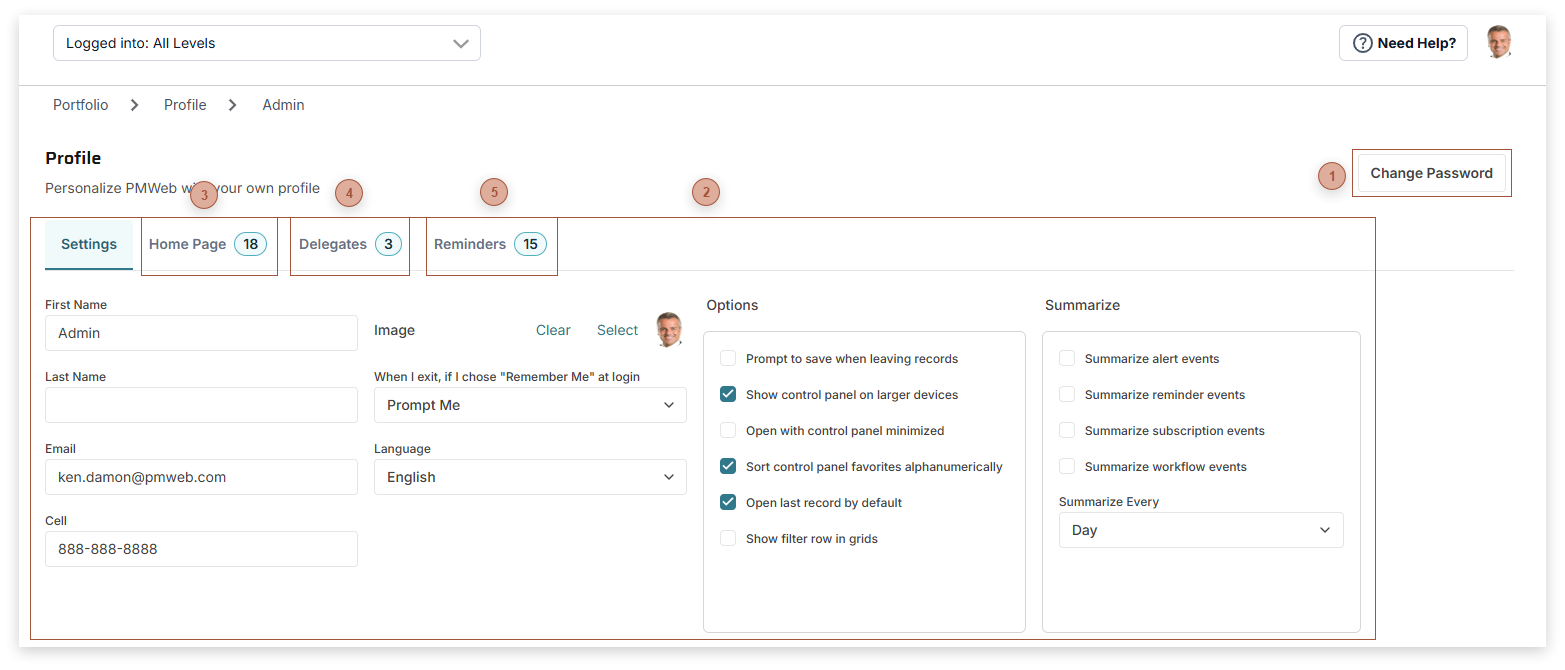
The Profile page lets users configure and customize aspects of their PMWEB experience. Highlights include:
Selecting which tabs appear in their User Home Page and tailoring their content and appearance
Changing their password
Delegating their Visual Workflow responsibilities to other users
Note that system administrators can configure and then push most of these settings to user groups using My Settings Tab and Roles Tab (delegates). In My Settings Tab system administrators can deselect an option to "Allow users to edit My Settings". In that case, the Home Page Settings tab is not available.
Change Password Button
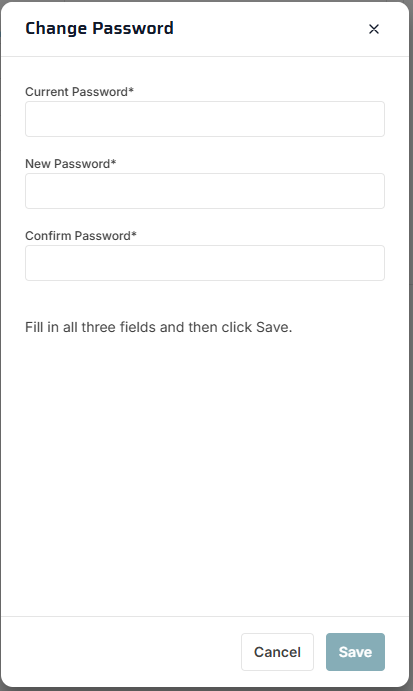
Change Password Button - Click this to open the Change Password dialog:
To change your password, fill in all three fields and then click the Save button.
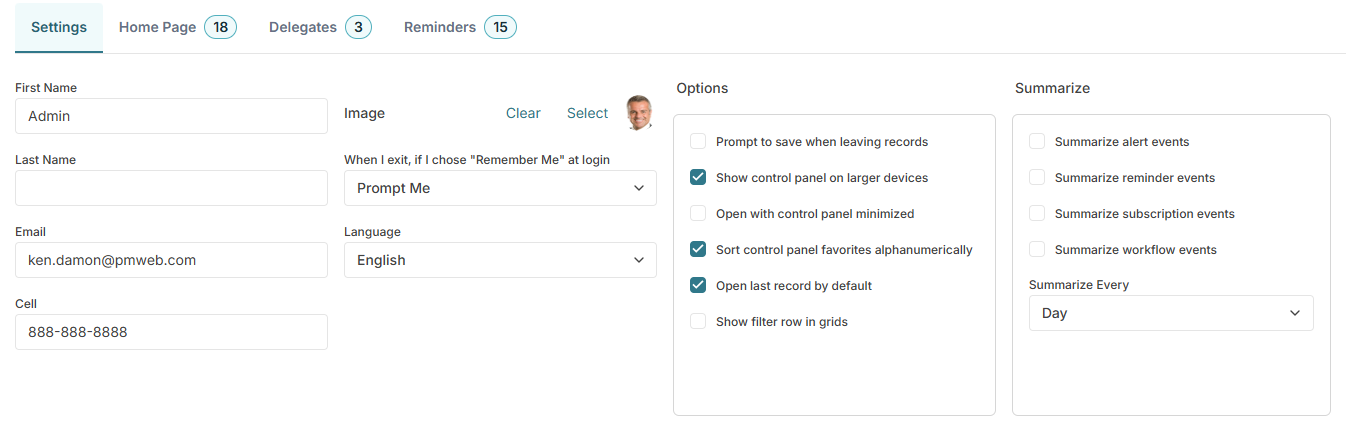
Image Field - Click the Select button to browse for a file to use on your profile. If you select an image, it can appear on various forms and reports throughout PMWEB and on the Profile button in the Control Panel.
When I exit, if I chose "Remember Me" at login Field - If you turn on the Remember me switch on the PMWEB Log In page, the choice you make here will be triggered each time you log out. Choices include:
Delete my authentication cookie - Your log in information cookie will be deleted and you will have to resupply it the next time you log in with the current browser
Prompt me - PMWEB will ask you each time you log out if you want to save or delete your log in cookie in the current browser
Save my authentication cookie - Your log in information cookie will be saved in the current browser
Language Field - Select a language from the dropdown list. PMWEB pages will appear in that language according to translations supplied by your PMWEB administrator.
Prompt to save when leaving records checkbox - Check this to be prompted to save when you navigate away from a record that needs to be saved. Navigating away from unsaved records loses the unsaved edits.
Show control panel on larger devices checkbox - Check this (the default) to always show the Control Panel, in drawer or rail mode, on every device. If this switch is turned off, the Control Panel does not display on devices larger than most smart phones. Hiding the Control Panel saves valuable screen space and you can still navigate everywhere in PMWEB using the breadcrumbs in the Top Bar.
Open with control panel minimized checkbox - Check this to open PMWEB with the Control Panel in minimized (rail) mode
Sort control panel favorites alphanumerically checkbox - Check this to have your favorite menu items sorted alphanumerically in the Control Panel. This applies only when you view the menu flyouts in Favorites mode.
Open last record by default checkbox - Check this to go directly to your last edited record, instead of the Manager Page, when you click an item in the Control Panel. An important consideration: This feature always navigates to the last viewed record, regardless of what level you are logged in at. Therefore, it is possible that segment 1 of the breadcrumbs in the Top Bar might not match the project or location on the record that loads when this feature is on.
Show filter row in grids - If this box is checked, a row of filter boxes appears below the column headers in most grids. The default is unchecked.
Summarize events checkboxes - Check any of these to be alerted in one summary message instead of each time one of those events is triggered. A summary email will be sent to you at the interval defined by the Summarize Every and Summary Day fields.