
Control Panel
The control panel is the main menu of PMWEB. Its buttons allow you to navigate to various features of the platform. The control panel can be viewed in an expanded state (called a drawer) or collapsed into a more compact view (a rail). It can also be hidden entirely, on devices larger than a smartphone, by turning off a switch in your Profile. If you choose to hide the Control Panel, use the breadcrumb segments in the Top Bar to navigate PMWEB. The buttons that appear on the control panel vary, depending on which features are licensed and which features you have security access to.
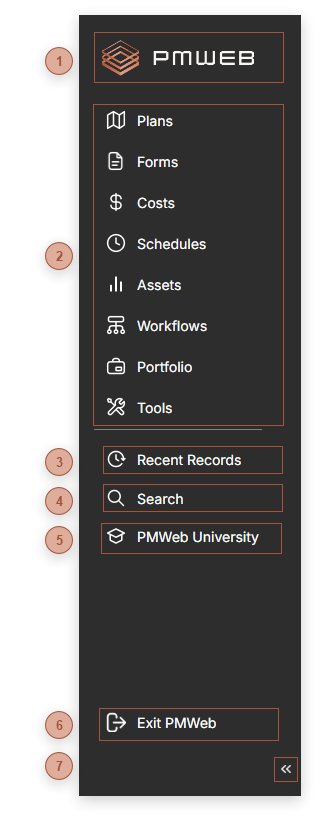
 Home Button The PMWEB logo is also a button. Click it to navigate to your User Home Page.
|
 Module Buttons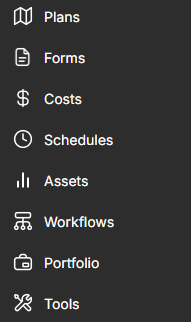 This section of the control panel features buttons for each PMWEB module you have access to. Clicking a button opens a flyout menu:
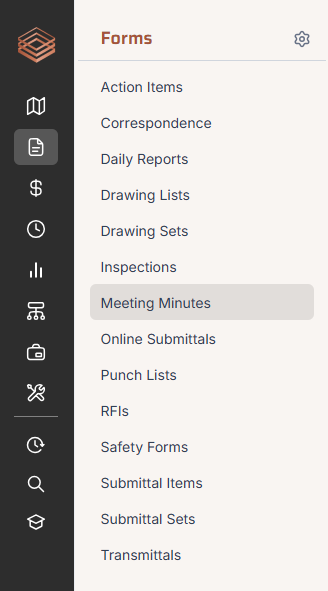 See Main Menu Flyout
|
 Recent Records Button Click this button to open the Recent Records Dialog. You can also open the dialog using the Ctrl+Alt+R shortcut key combination.
|
 Search Button Click this button to navigate to the Search page. You can also navigate to this page using the Ctrl+Alt+S shortcut key combination.
|





