User Guide PMWEB 2025
×

Top Bar

This bar appears at the top of most PMWEB pages and allows you to access global features.
Top Bar
1

Logged into Level

1. Logged into Level
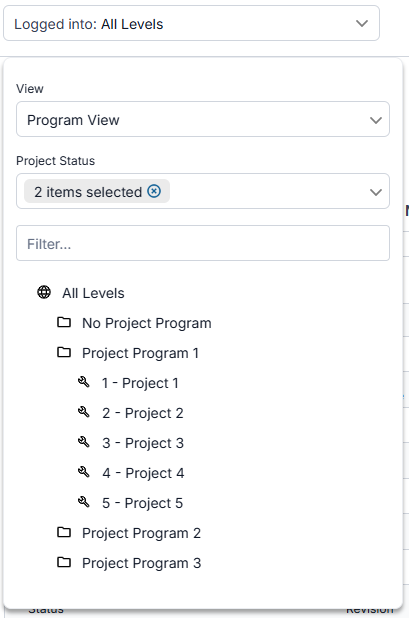
This dropdown indicates your current working level. You can log into the level of your entire portfolio or a selected project program, project, location program, or location. Selecting a level here automatically filters most Manager Pages and other screens as well. Click this field to open the level dropdown:
 
 
  • Select a view to determine how items are grouped in the level tree. Options here are: Location View, PBS View, or Program View.
  • Select one or more project statuses to filter the level tree.
  • Type all or part of an level's ID or name in the filter field to further filter the level tree.
  • Click a level in the tree. The dropdown closes, the text in the segment changes to the selected level, and the current page is refreshed.
 
2

Breadcrumbs Segment 1 - Module

2. Breadcrumbs Segment 1 - Module
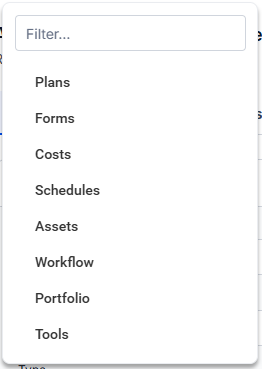
The first segment of the breadcrumbs indicates the module of the current page. Click this segment to open the module dropdown:
 
 
  • Type all or part of a module's name in the filter field to filter the list
  • Click a module in the list. This dropdown closes and the record type dropdown opens, displaying record types for the module you selected.
 
3

Breadcrumbs Segment 2 - Record Type

3. Breadcrumbs Segment 2 - Record Type
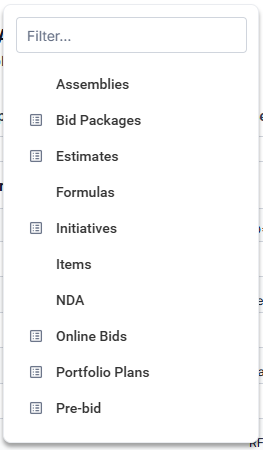
The second segment of the breadcrumbs indicates the record type of the current page. Click this segment to open the record type dropdown:
 
 
  • Type all or part of a record type's name in the filter field to filter the list
  • Click a record type in the list. This dropdown closes and the record dropdown opens, displaying records for the record type you selected
  • ... OR click the manager page button - - next to a record type. The dropdown closes and you navigate to that manager page.
 
4

Breadcrumbs Segment 3 - Manager Page

4. Breadcrumbs Segment 3 - Manager Page
If the current record type has a manager page, this breadcrumbs segment shows. If it doesn't, this segment is hidden. Click this segment to navigate to the manager page.

 
5

Breadcrumbs Segment 4 - Record

5. Breadcrumbs Segment 4 - Record
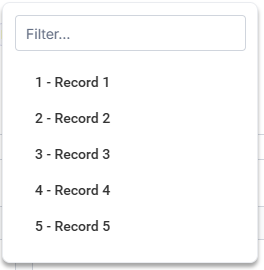
The fourth segment of the breadcrumbs indicates the record that is currently open. Click this segment to open the record dropdown:
 
 
  • Type all or part of the record's ID or name in the filter field to filter the list
  • Click a record in the list. This dropdown closes and you navigate to that record.
 
6

HELP BUTTON

6. HELP BUTTON
Click this button to open the context-sensitive online help (this guide)
7

PROFILE BUTTON

7. PROFILE BUTTON
Click this button to navigate to the Profile page