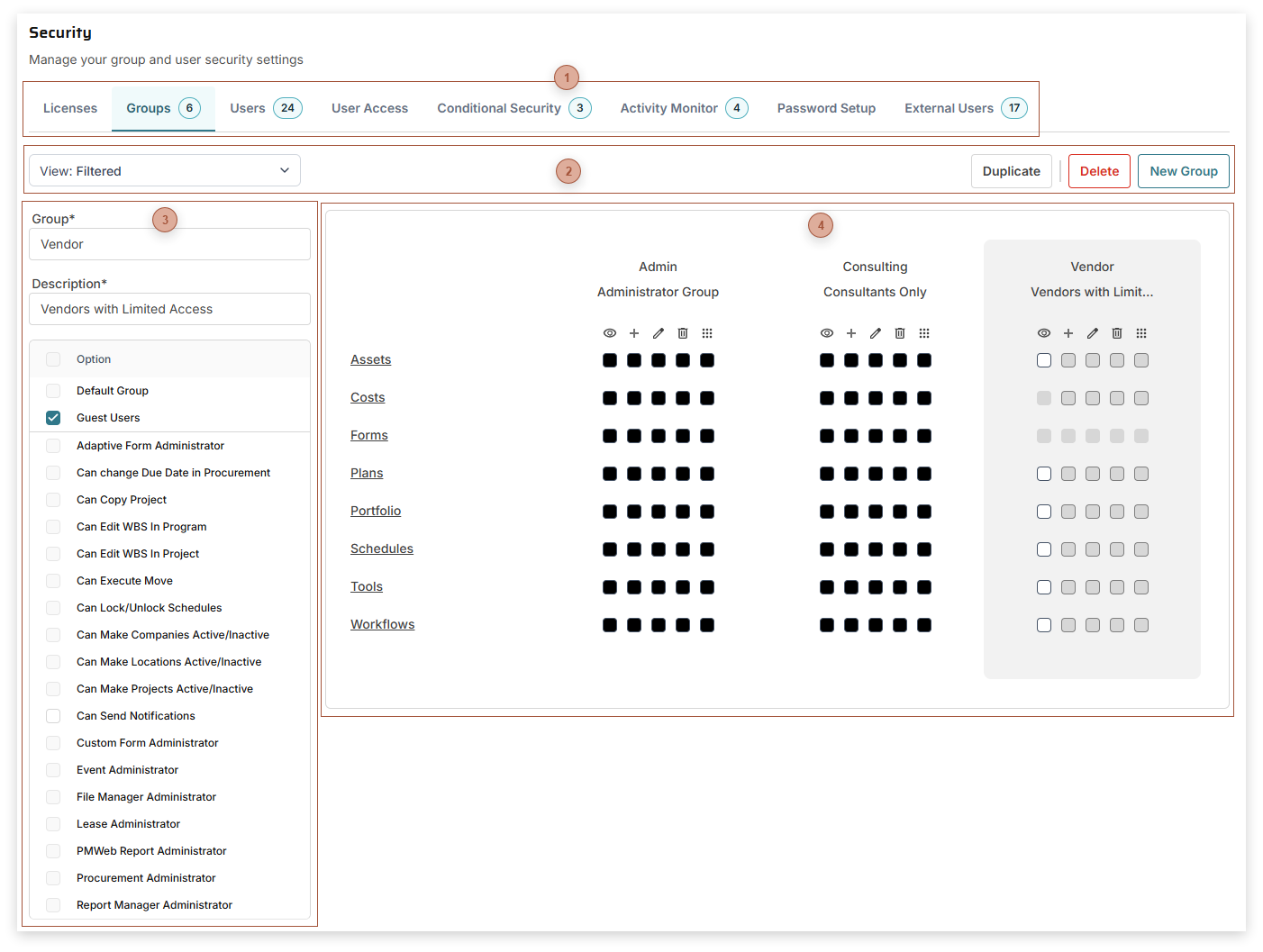
View Field - Check groups in the dropdown list to show them on the right side of the page. By showing multiple groups at once, you can perform side-by-side comparisons of them.
Duplicate Button - Click this button to create a copy of the currently selected group
Delete Button - Click this button to delete the currently selected group
New Group - Click this button to create a new, empty, group
Save and Cancel buttons appear when you start editing any of the information for the current group
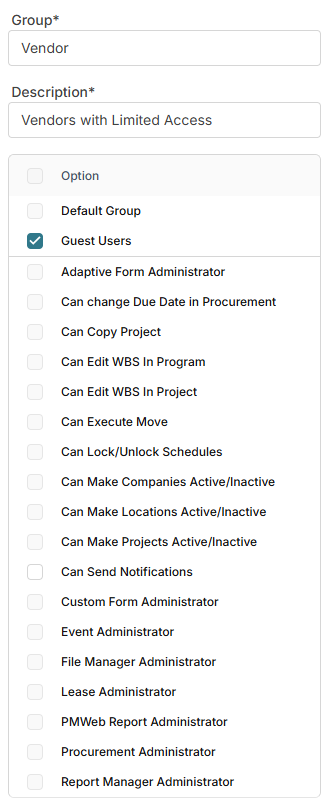
Description Field - Required. A description for the group.
Option Checkbox - Checking or unchecking this box toggles checked or not checked for almost all of the items in the options section
Default Group - If checked, this group will default when creating new users on the Define Users Tab
Guest Users - Check this box if the group is comprised of users with a License Type of "Guest" (see Define Users Tab). Checking this box disables some of the options listed below.
Adaptive Form Administrator - Users assigned to the group can make advanced changes to Adaptive Forms
Can change Due Date in Procurement - Users assigned to the group can edit the Due Date field in Bid Package Header Fields
Can Copy Project - Users assigned to the group can click the Copy Project button in Projects
Can Edit WBS in Program - Users assigned to the group can edit the default WBS in the Programs Projects Tab
Can Edit WBS in Project - Users assigned to the group can edit the default WBS in Projects
Can Execute Move - Users assigned the group can click the Execute Moves button in the Move Plans
Can Lock/Unlock Schedule - Users assigned to the group can click the Locked/Unlocked toggle button in Schedules
Can Make Companies Active/Inactive - Users assigned to the group can click the Active/Inactive toggle button in Companies
Can Make Locations Active/Inactive - Users assigned to the group can click the Active/Inactive toggle button in the Locations
Can Make Projects Active/Inactive - Users assigned to the group can click the Active/Inactive toggle button in the Projects
Can Send Notifications - Users assigned to the group can click the Notification Button in the header toolbar of records and click the Add button in the toolbar in the Notifications Tab of records
Document Manager Administrator - Users assigned to the group can add, delete, and edit document folders including the use of the Edit Folder Dialog
Events Administrator - Users assigned to the group can snooze, dismiss, and delete events for all users (not just themselves) in the Event Center
Lease Administrator - Users assigned to the group can view, create, edit, and delete Lease Administrator records. A special permission is needed here because Lease Administrator records can contain data from more than one location.
PMWEB Report Administrator - Users assigned to the group can edit permissions for PMWEB Reporting records
Report Manager Administrator - Users assigned to the group can add and delete custom reports in BI Reporting
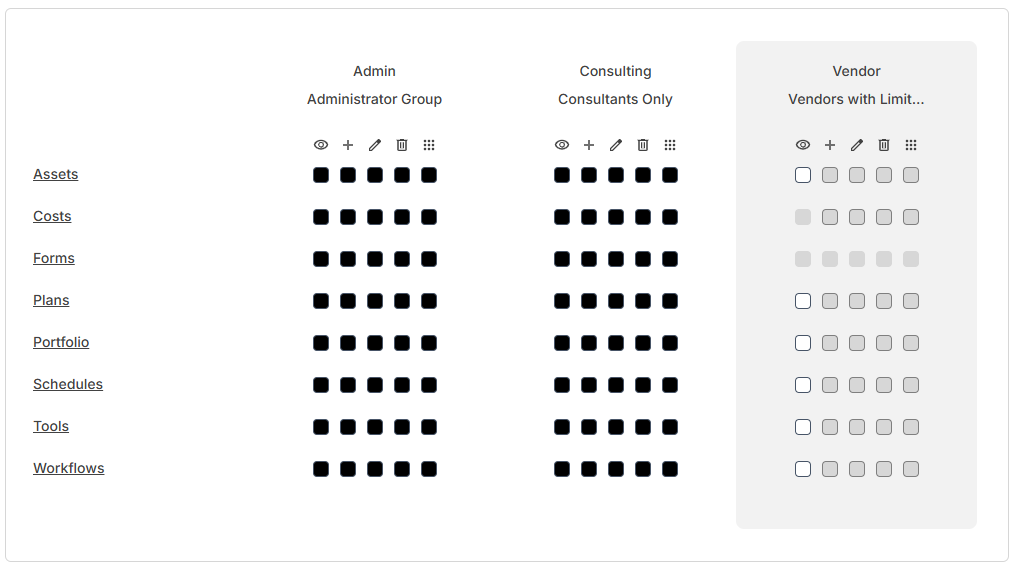
Use this table to assign rights to modules, record types, sections, and tabs. Multiple groups can be shown by using the View field in the toolbar. Click a group column here to make that group the currently selected one so you can then edit it. The selected group has a gray background.
Module and record type permissions are:
View - users assigned to the group can view records of that type in the Manager Page and in the Select Record Dropdown
Create - users assigned to the group can create new records of that type
Edit - users assigned to the group can edit records of that type
Delete - users assigned to the group can delete records of that type
Full Control - users assigned to the group can view, create, delete, and edit records of that type. Checking this box automatically checks all of the others in the line.
Drill down in the table by clicking the labels on the left to view lower levels with additional settings. Labels that are underlined can be clicked. If a label is not underlined, there are no level settings below that. Note that checking boxes at the table level also checks them at lower levels, if applicable.
Field and tab permissions are:
View - users assigned to the group can view the tab or field in records of that type
Edit - users assigned to the group can edit the field or lines in the tab in records of that type
Permissions are represented by colored boxes:
Black - Indicates that this permission is granted at this level and all sub-levels, where applicable
Gray - Indicates that this permission is not granted at this level but is at one or more lower levels
White - Indicates that this permission is not granted at this level or at any lower level