This section appears at the top of most tables in PMWEB. The buttons and text you see varies, depending on many factors. This topic describes the most common features.
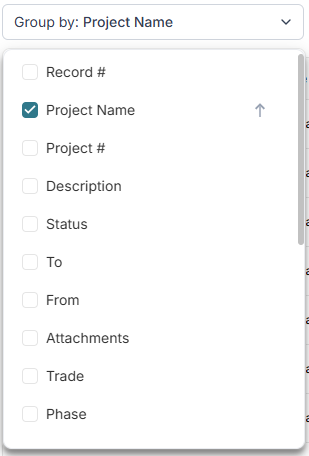
 Group By FieldThis field only shows if grouping is allowed in the table. Click in the Group by field and then check one or more fields in the dropdown list. The order in which you check fields determines the grouping order. Click the arrow to the right of selected items to change their sort order.
|
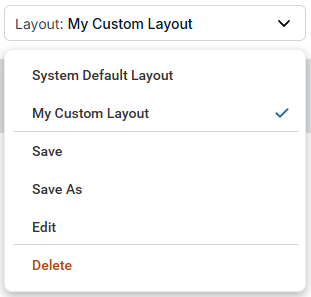
 Layout FieldThis field only shows if multiple layouts are allowed for the table. Select a layout in the top section of the dropdown to apply it to the table. The System Default Layout always appears at the top of the list. The currently loaded layout is checked. The middle section of the dropdown allows you to save, save as, and edit the currently loaded layout. Click Edit to open the Grid Layout Dialog. |
 Table ButtonsThe buttons that appear here vary, depending on many factors and may include:
-
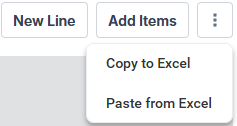
New Line Button - Click this button to add a new, empty, line in the table -
Add Items Button - Many tables allow you to create lines by selecting from predefined collections of things. Clicking these buttons opens a dialog where you can select one or more things and then save them to the table as lines. In this example, clicking the Add Items button opens the Items Dialog. -
More Button - This button appears if there is not enough room on the screen to display all of the buttons that are available or if there are secondary buttons that aren't often used. Click the More button to see a dropdown list of available commands:
-
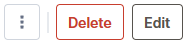
Selection-Dependent Buttons - Some buttons, Delete and Edit, for example, only appear if one or more lines in the table is selected:
-
Cancel and Save Buttons - Once you begin editing one or more lines, the Cancel and Save buttons appear:
|
|