To properly display this page you need a browser with JavaScript support.
Use this tab to configure what user groups and users can access your report. These permissions are in addition to any that may have been granted in
Security .
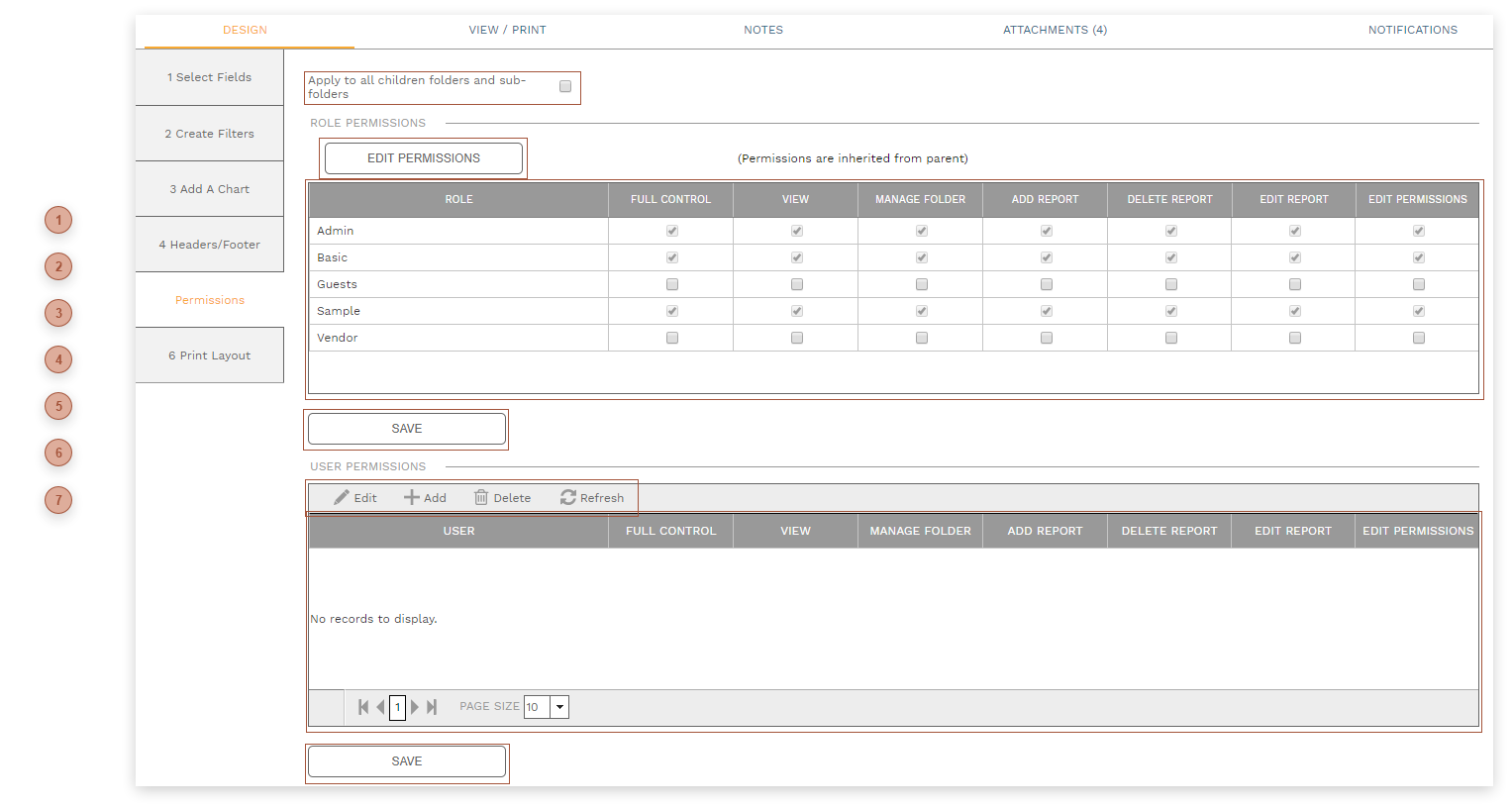
APPLY TO... CHECKBOX Check this box to apply the permissions to all folders below the current one.
EDIT PERMISSIONS BUTTON Click this button to unlock the User Groups and Users tables for editing.
USER GROUPS TABLE All of the user groups defined in the Portfolio/Setup/Security/
Define Groups Tab appear in this table. For each group select options:
Full Control - Checks all of the boxes on the line. The group has all rights to the report.
View - Users in the group can view the report but cannot edit the folder definition or add or delete reports.
Manage Folder - Users in the group can add, move, redefine, and delete folders in the PMWEB Reporting tree
Add Report - Users in the group can add reports to the folder
Delete Report - Users in the group can delete the report
Edit Report - Users in the group can edit the report definition
Edit Permissions - Users in the group can edit settings on this tab for the report
SAVE BUTTON Click this button to save edits to the User Groups table.
USERS TABLE TOOLBAR
USERS TABLE This table acts as an extension or modification for specific users of the rights granted to their group in the table above.
SAVE BUTTON Click this button to save edits to the Users table.