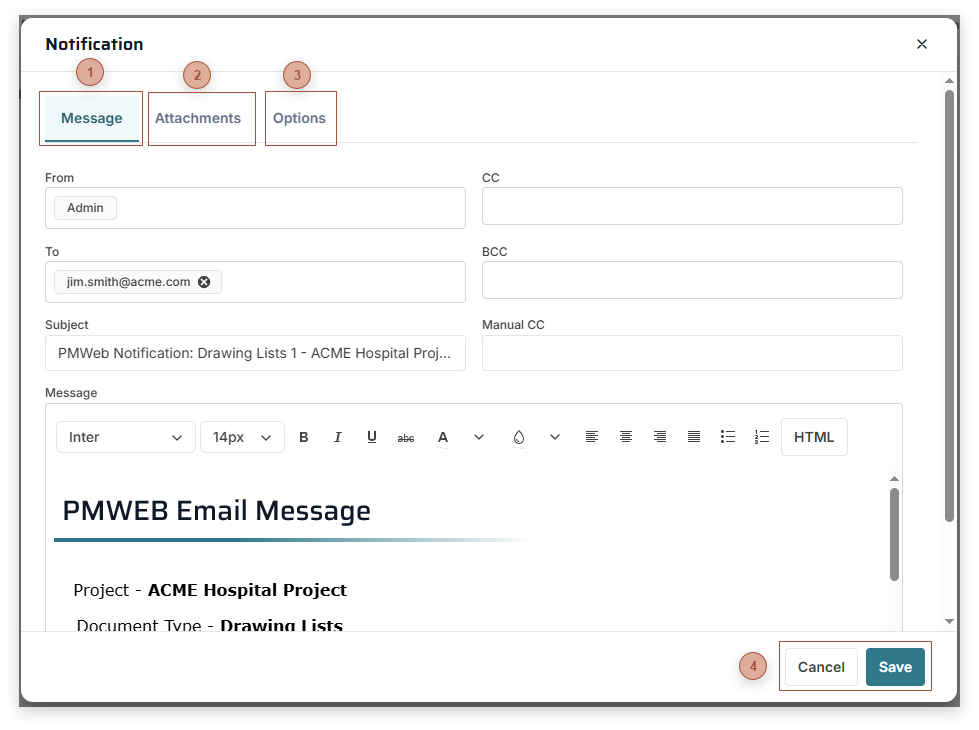
Notifications Dialog
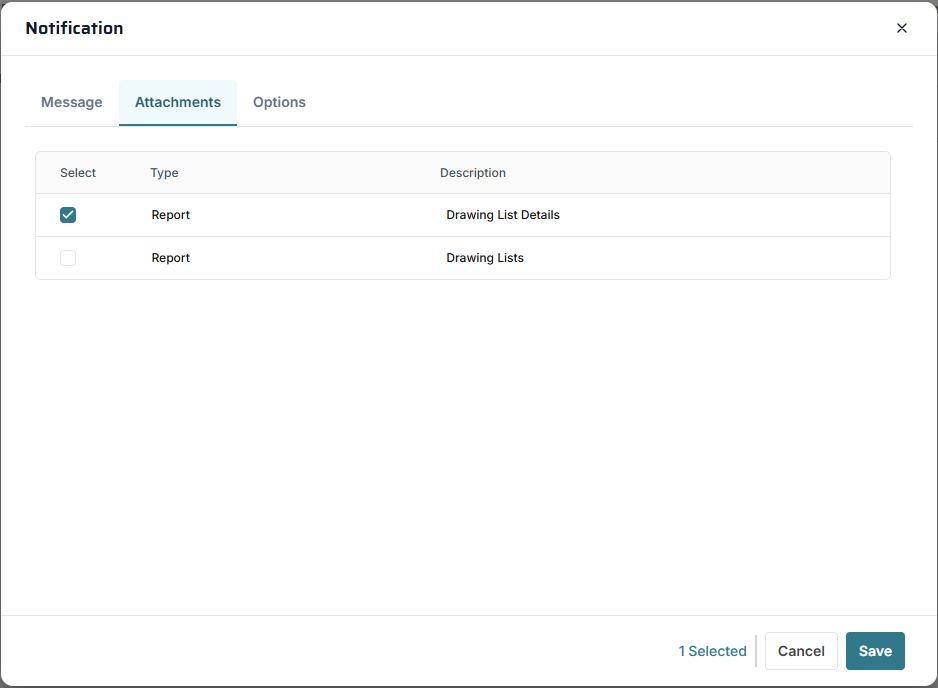
Use this dialog to create new and review existing Notifications. A notification is an email linked to a PMWEB record. This dialog is opened by click the Notification Button in the header of many record types, clicking the Add button in the toolbar of the Notifications Tab in many records, or by clicking the View Message button in a line in the Notifications Tab of many records.


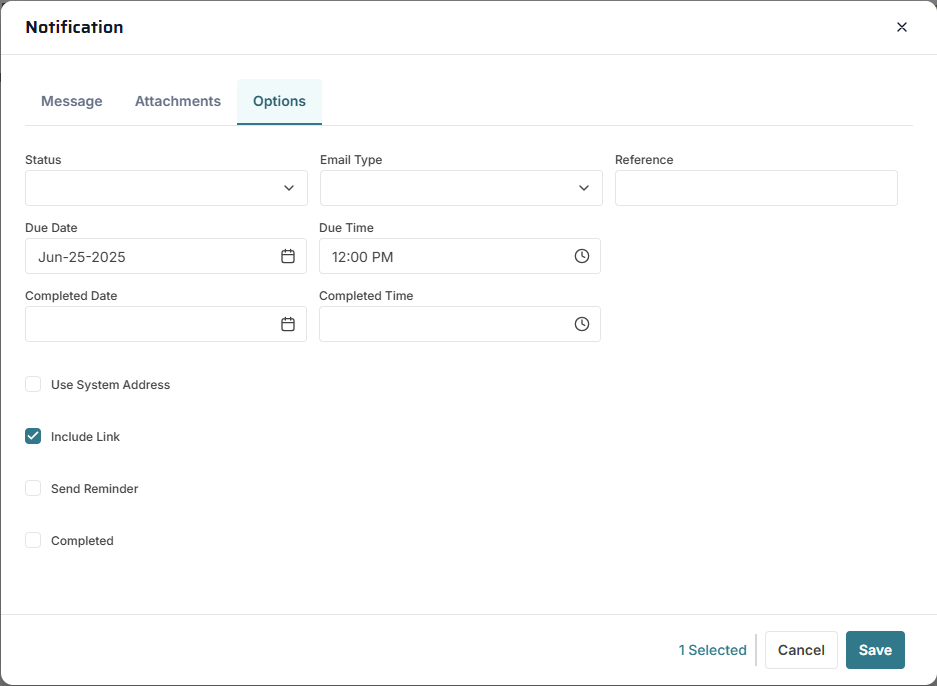
 Options Tab This tab contains options for configuring the Notification.
Status Field - Status (Notifications)
Email Type Field - Type Field
Reference Field - Reference Field
Due Date Field - Date Field
Due Time Field - Time Field
Completed Date Field - Date Field
Completed Time Field - Time Field
Use System Address Checkbox - If this box is checked, rather than showing the user selected in the From field as the sender of the notification email the address entered in the Portfolio / Email / Email Setup page will be used.
Include Link Checkbox - If this box is checked, and if the notification template is configured to (see Message Templates), a hyperlink to the record that the notification is linked to will be included in the email message.
Send Reminder Checkbox - If checked, an email reminder will be sent to the addressees when the due date and time have passed
Completed Checkbox - Place a check in this box to mark the notification as complete
 |