Manager Page
Most record types in PMWEB have an associated manager page. Manager pages are used to:
-
Add new records - Click the Add button to create a record
-
View recent records - When you click the View Recent button, the manager page table is refreshed to show the last 10 records that you opened of that type. All other filters are temporarily removed. Click "View All" to return to the previous view.
-
Delete one or more records - Select one or more records in the Manager page table and then click the Delete button. Note that the Delete button only appears if one or more eligible lines is selected in the table.
-
Search for one or more records - Use the grouping, filtering, and sorting capabilities of the Manager Page table.
-
Open a record - Double click a line in the Manager page table or click the record # hyperlink to open it for viewing and editing.
-
Import records - Some Manager Pages allow you to import records.
-
Export the current data view to PDF or Excel
How manager pages are filtered
Filters are applied to manager pages this way:
-
If you are logged into a level (see The Top Bar), only records at or below that level are shown in the table
-
If the current layout includes a filter that contradicts the logged-in level, that layout filter is ignored and the logged-in level filter is applied instead
-
All filters that are not related to the logged-in level are always applied
The fields that appear in the table vary by record type. Generally, fields from the header of records are shown here.
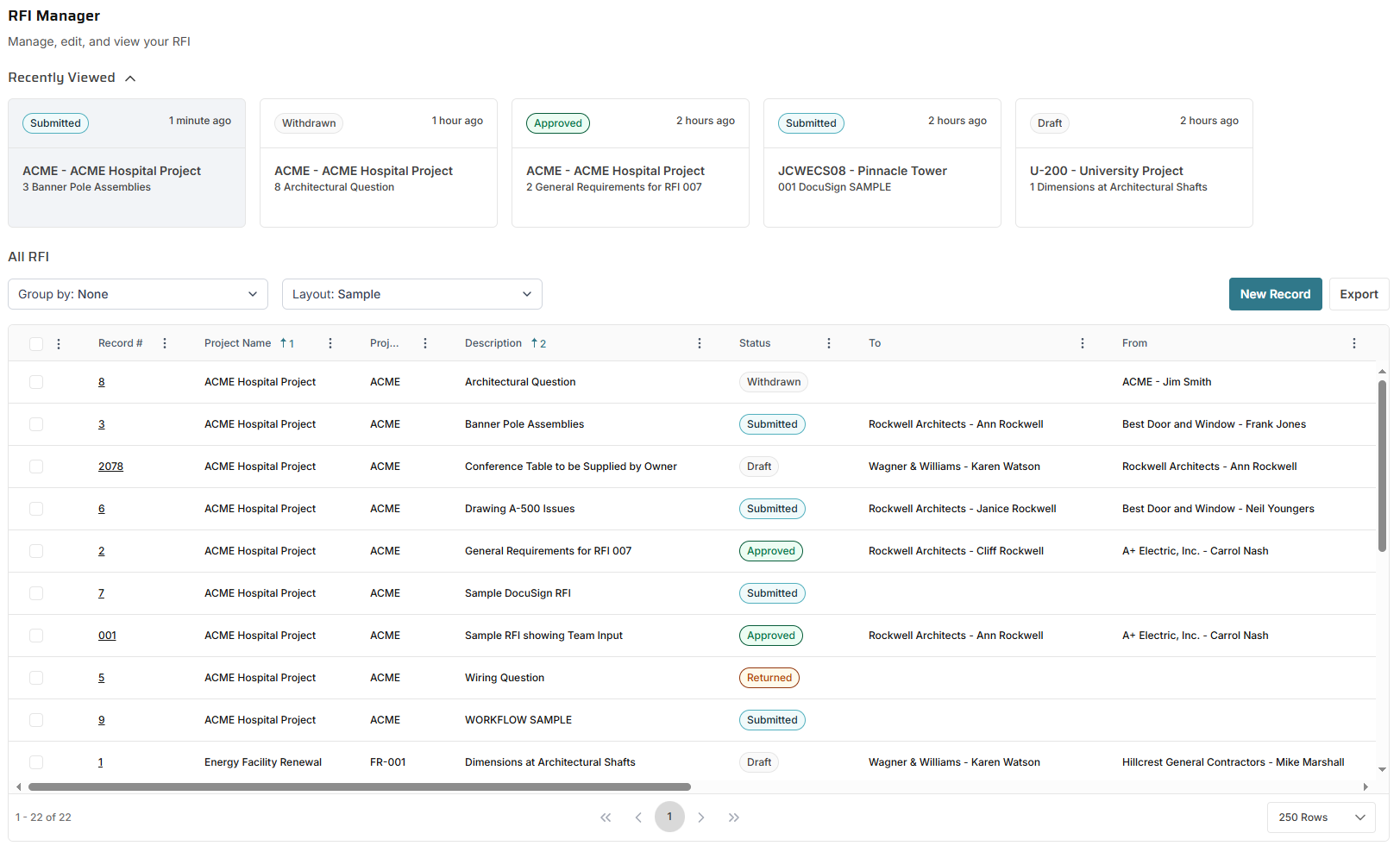
Recently Viewed
The top section shows the last four records that you opened. Tap any one of them to return to that record. The Recently Viewed section can be collapsed if you wish.
Manager Page Table Layouts
You can tailor views of Manager page table data and save them as layouts. Click the Layout button in the toolbar to view the Layout dropdown:
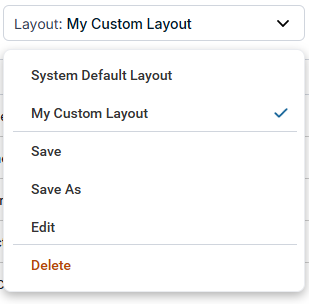
The top section of the dropdown shows all of the saved layouts for the page, including the System default layout, which is always at the top of the list. (The System default layout cannot be edited or deleted.) The currently loaded layout is highlighted. If you have system permission to edit the currently loaded layout, the bottom section of the dropdown shows Save, Save As, Edit, and Delete buttons. Click the Edit button to open the Manager Page Layout Dialog.
Accessing Manager Pages
Manager pages can be accessed:
-
By clicking a menu item in The Control Panel. There is an option in The Profile Page to go directly to your last opened record instead of opening the manager page first.
-
By clicking the Manager Page button in segment 3 of the interactive breadcrumbs in The Top Bar
-
By clicking the “Manager Page” item in segment 4 of the interactive breadcrumbs in The Top Bar
-
By using the shortcut key combo Ctrl+Alt+M from within a record that has a Manager page