Email Templates
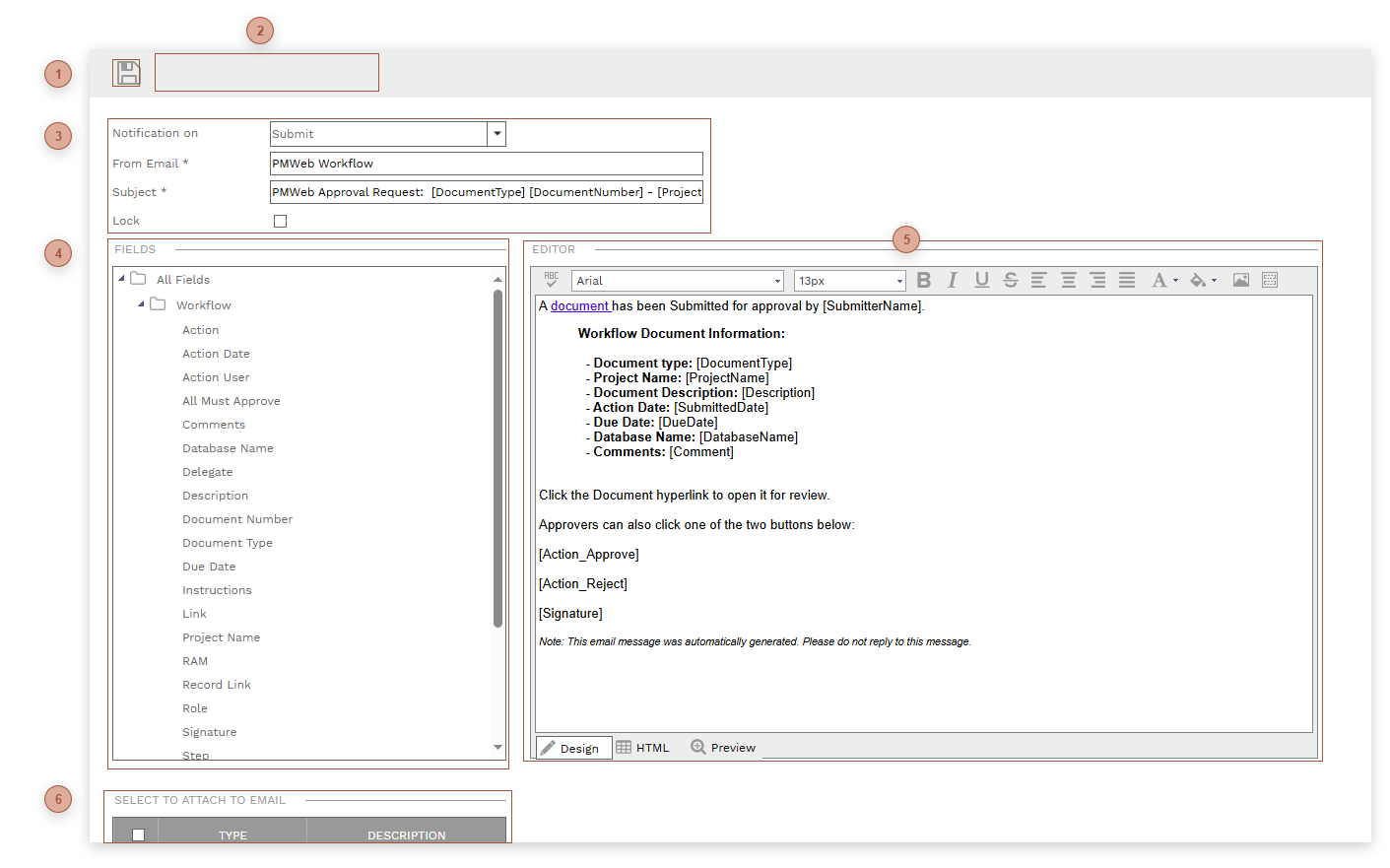
This page is used to design templates for the emails that are sent by PMWEB Workflow. To use the page:
-
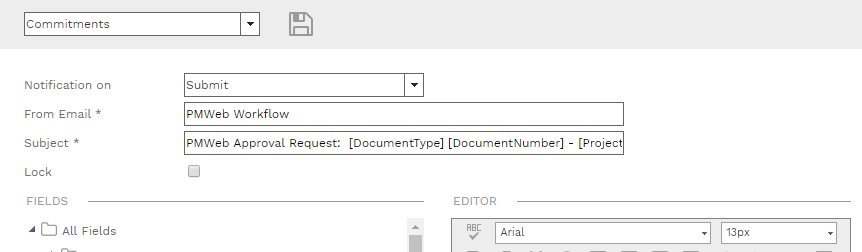
Select a record type
-
Select a workflow action for the record type using the "Notification on" field
-
Edit the Subject field
-
Use the Editor field to format the body of the email
-
Make selections in the Select To Attach To Email Section
-
Save





 FIELDS TREE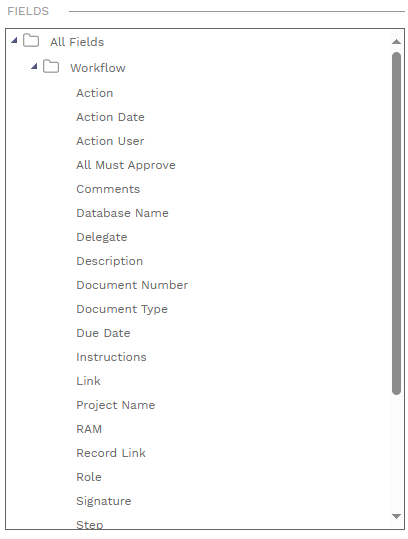 This tree displays all of the fields that can be placed as tokens in the email template. Before emails are sent, these field tokens are replaced with data from the record that is in workflow.
To use the tree, first click somewhere in the Subject or Editor fields to place your cursor where you want a token to appear and then click one of the fields in the tree.
The fields in the tree vary, depending on the selected record type and include three special tokens in the Workflow Actions folder: "Approve", "Final Approve", and "Reject". These tokens will be replaced in the message with action buttons, as show in the screenshot.
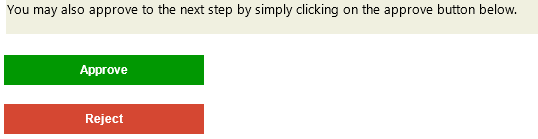 When the person who receives the email clicks one of these buttons the associated workflow action will be immediately recorded without them having to log into PMWEB.
Important note: Action buttons work in conjunction with two settings:
|
 EDITOR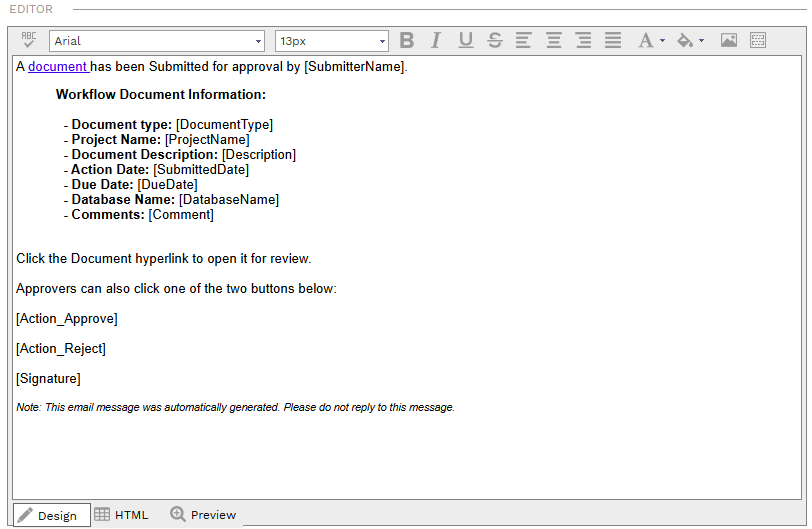 Add text and field tokens to configure the body of the email message. Use the Fields tree to insert tokens and see the Notes (RTF) Dialog topic for information about using the editor.
|

