
Define Branch Rule Dialog
Use this dialog to view, create, and edit conditional statements which, if they logically evaluate as true in a record, automatically take a selected workflow action.
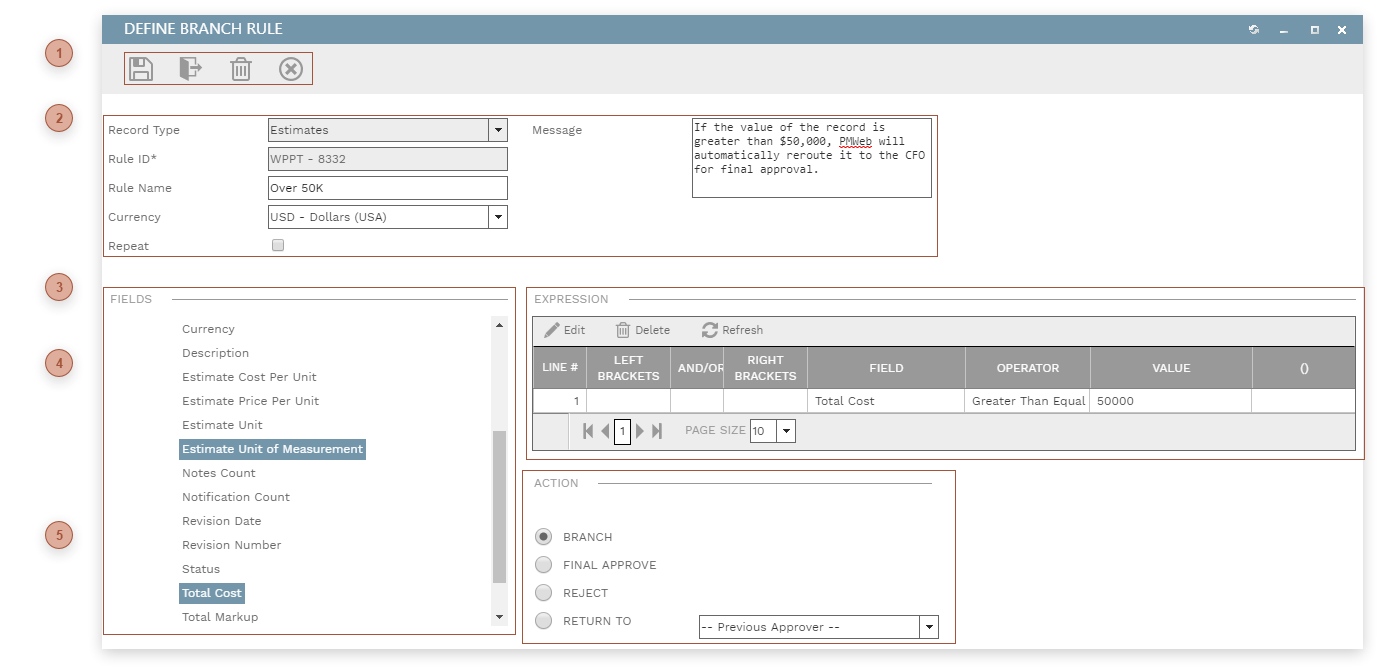


 HEADER Record Type Field - Required. This defaults from the record type folder that was right clicked to begin the Add Branch Rule process (see BPM Tab Define Steps Section) but may be edited. This field is locked if there are lines in the Expression table.
Rule ID Field - Read only. This is a sequential number assigned by PMWEB.
Rule Name Field - Description Field
Currency Field - Select a currency from the dropdown list. Currency type fields in the Expression table will be converted to the currency selected here before the branch rule expression is evaluated.
Repeat Checkbox - If this box is checked, after this branch rule has been invoked once for a record it will be reevaluated every time the workflow "Approve" action occurs.
Message Field - The message entered here will be displayed in the log each time the branch rule takes a workflow action and can be inserted into Email Templates.
|

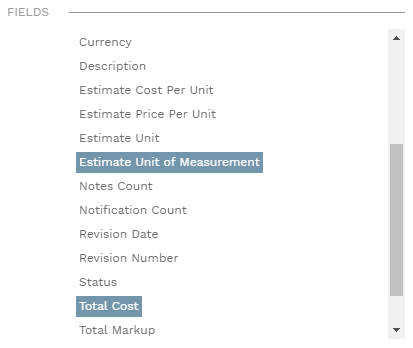

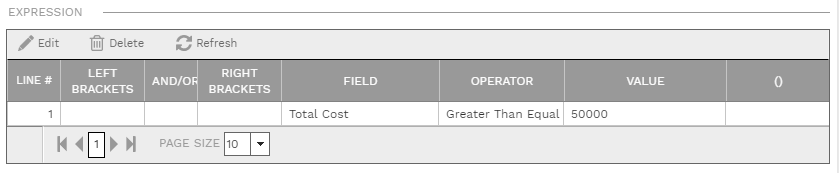
 ACTION SECTION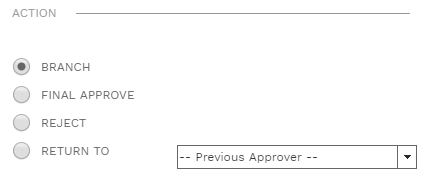 Click a radio button in this section to determine which workflow action will be taken if the expression evaluates as true.
Note that this section is not editable if the dialog is opened by double clicking lines in the Steps table or by clicking an element in the Visual Workflow section of the Business Processes (BPM) Tab.
|