Add Members Dialog
Use this dialog to add one or members to a board. This dialog is opened by clicking the plus button to the right of the Members section label in the Board Settings Dialog.
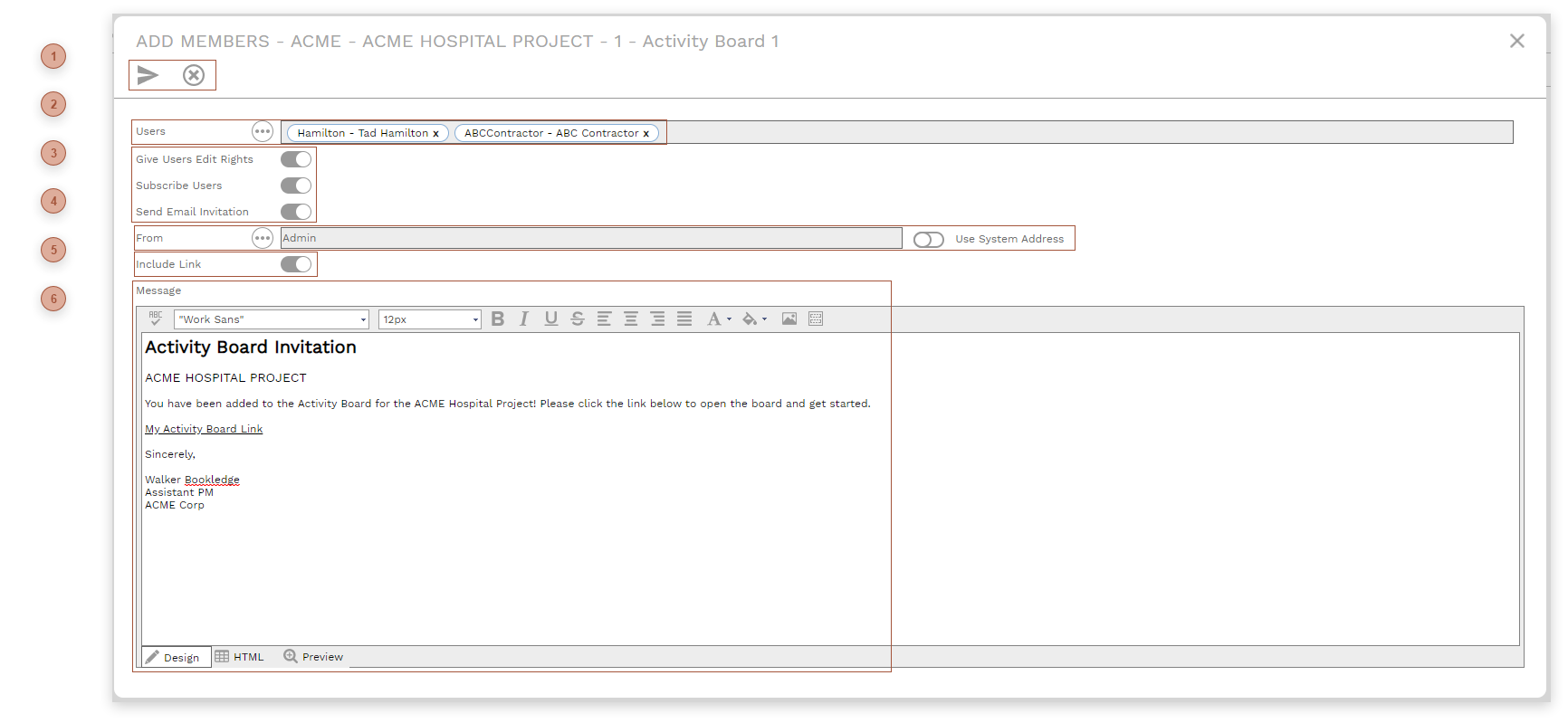


 USERS FIELD This field displays the users you are adding as board members. Click the helper button to see a list of eligible users. To be eligible, a user must have access to the board's project, must have the "Activity Boards" option checked in Portfolio/Administer/Security/Define Users, and must not already be a member of the board.
|
 OPTION SWITCHES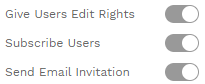 Give Users Edit Rights Switch - Default is on. This setting can be modified in the Board Settings Dialog.
Subscribe Users Switch - Default is on. This setting can be be modified in the Board Settings Dialog and by each user in their Profile Dialog.
Send Email Invitations Switch - Default is on. If on, when the Send Email button in the header toolbar is clicked, an email is sent to each user in the Users field. The invitation email template can be edited in Portfolio/Administer/Message Templates/Activity Boards.
|


 LINK SWITCH Include Link Switch - Default is on. If on, and if the ActivityBoard_Link token is inserted in the invitation template in Portfolio/Administer/Message Templates/Activity Boards, the invitation email will contain an active hyperlink to the board.
|
 MESSAGE FIELD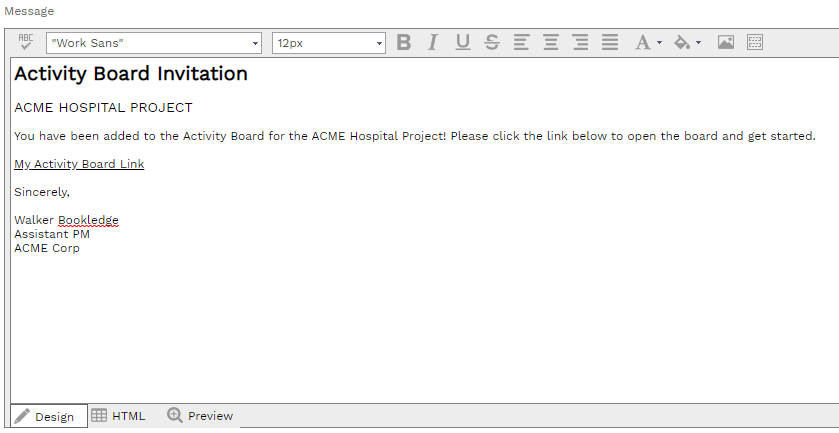 Type in this field to create a comment that will appear in the invitation email, if the Comment token is inserted in the invitation template in Portfolio/Administer/Message Templates/Activity Boards.
|