This tab appears after the record has been submitted into workflow and is used to monitor previous actions and take new ones.
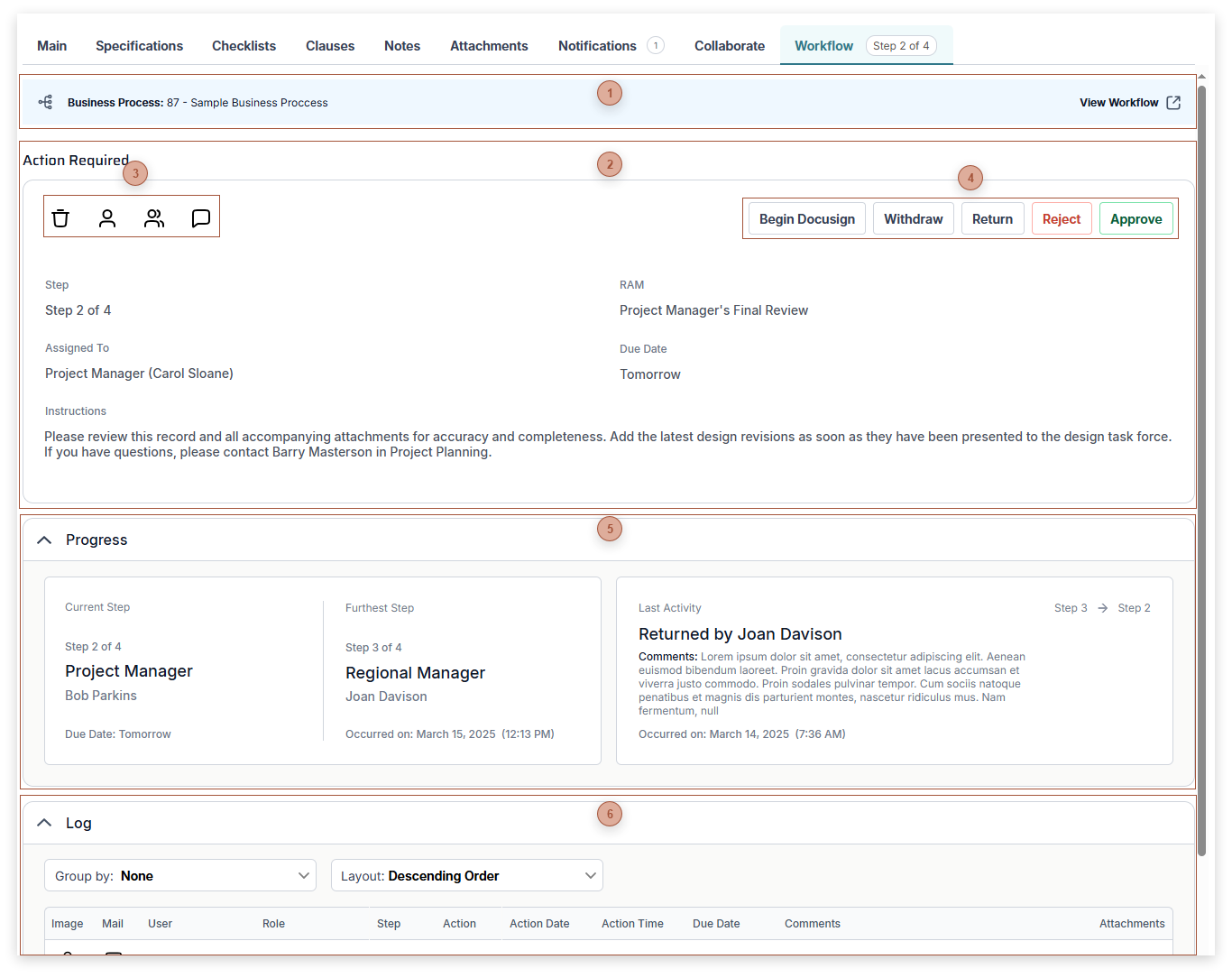
 Business Process BannerThis banner displays the ID and name of the business process assigned to the record. You can click the View Workflow button to open the View Workflow Dialog.
|
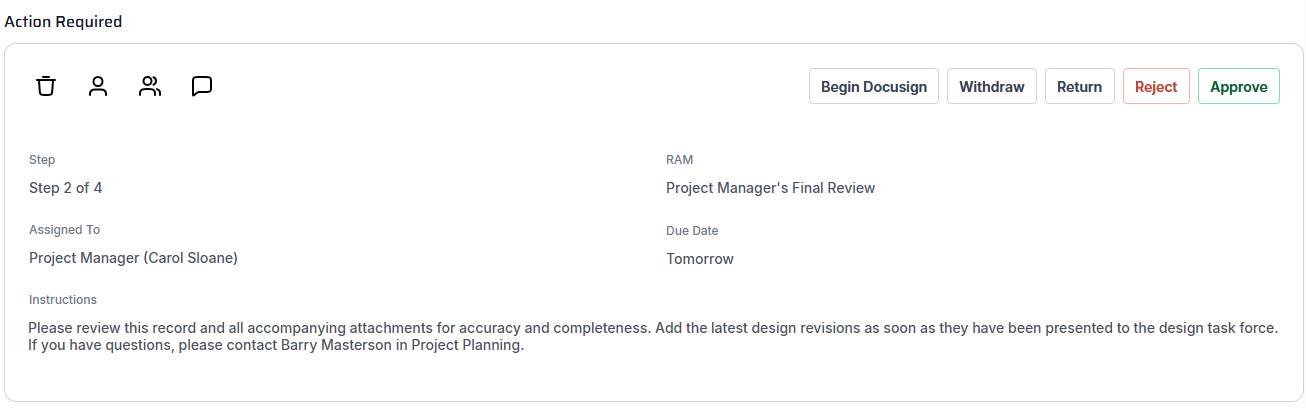
 Action Required SectionThis section only appears if you have the right to take workflow actions at the current step. The section displays background data about the step as well as action buttons. The buttons that appear vary, depending on your permissions within the business process.
|
 Secondary Action ButtonsThese buttons let you take workflow actions that do not move the record forward or backward in the business process. The buttons that appear vary, depending on your permissions within the business process and may include:
-
Delete - Click this button to delete the business process from the record, including the log of activities -
-
-
Comment - Click this button to open the Comment Dialog
|
 Primary Action ButtonsThese buttons let you take workflow actions that move the record forward or backward in the business process. The buttons that appear vary, depending on the configuration of the business process. Clicking any of these buttons opens a dialog that guides you through the action process.
|
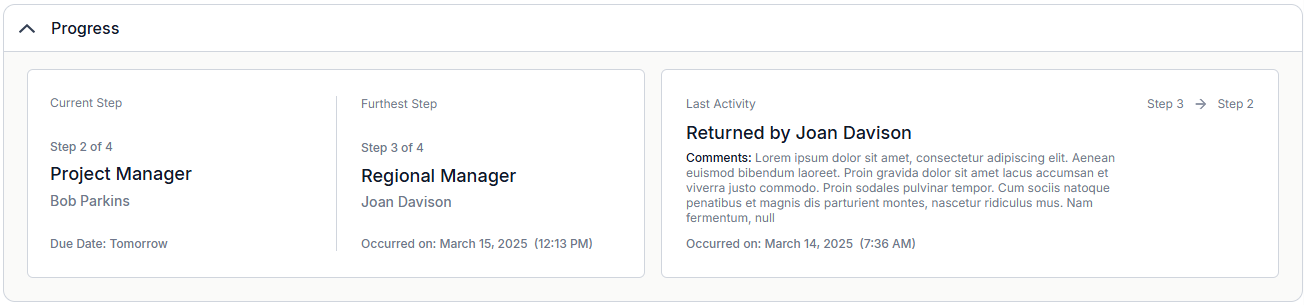
 Progress SectionThis section provides an overview of workflow actions up to now. If you don't wish to see this information you can collapse the section.
|
 Log SectionThis section displays a list of every workflow action taken to date. Click the icon in the Mail column to open the Resend Message Dialog. |
|