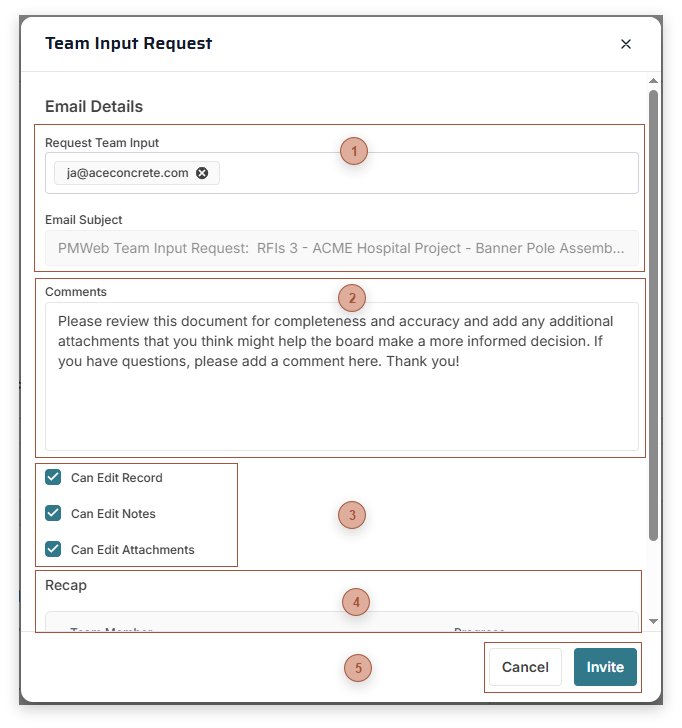
Use this dialog to invite one or more PMWEB users to act as partners within a Visual Workflow step. This dialog is opened by clicking the Team Input link in the Workflow Actions section of the Workflow Tab.
 Dialog Fields
-
-
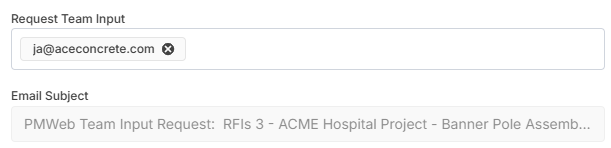
Email Subject Field - A read-only preview of the subject line in the email that will be sent to invitees
|
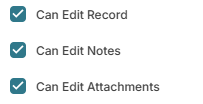
 Dialog Checkboxes-
Can Edit Record Checkbox - Allows the selected team members to edit the record even if regular security settings do not allow them to do so. -
Can Edit Notes Checkbox - Allows the selected team members to edit notes in the record even if regular security settings do not allow them to do so. -
Can Edit Attachments Checkbox - Allows the selected team members to edit attachments to the record even if regular security settings do not allow them to do so.
|
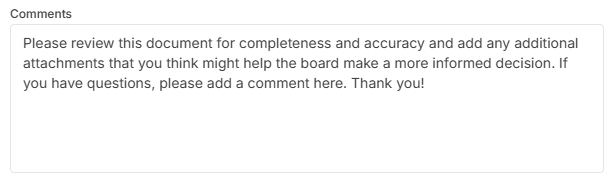
 Comments FieldThe message entered here will be displayed in the Visual Workflow log and can be displayed in team input request emails. Message templates for team input requests are configured in Email Templates. |
 Team Input Recap TableRead only. This table displays all of the current members of the team for the step and their latest progress.
|
 Dialog Toolbar |
|