Table Controls
Tables feature several controls to quickly and easily configure them. These include:
Column Settings Menu
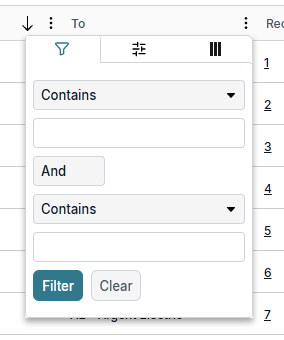
Open this menu by clicking the More button  in a column header. The menu contains three tabs. The first tab lets you apply and clear filters. The second tab has options for sorting, locking, and auto-sizing columns. The third tab lets you show or hide columns.
in a column header. The menu contains three tabs. The first tab lets you apply and clear filters. The second tab has options for sorting, locking, and auto-sizing columns. The third tab lets you show or hide columns.Interactive Sorting
Click a column header once to sort by that column in ascending order. Click a second time to sort in descending order. Click a third time to remove sorting by the column. The same results can be achieved using the second tab in the Column Settings Menu. If the column is sorted, an up or down arrow appears in the header. If more than one column is sorted, a number appears next to the order.
Column Resize Handle
If you place your cursor to the right of the More button, the cursor changes to a resize handle. Click and drag left or right to change the width of the column.
Interactive Column Ordering
Click and hold any column heading and then drag left or right to change its order.