
Submit Workflow Dialog
This dialog is opened by clicking the Submit button in the Header Toolbar. It allows you to:
-
Check which Visual Workflow business process will be assigned when you finish the submit process and view details about it
-
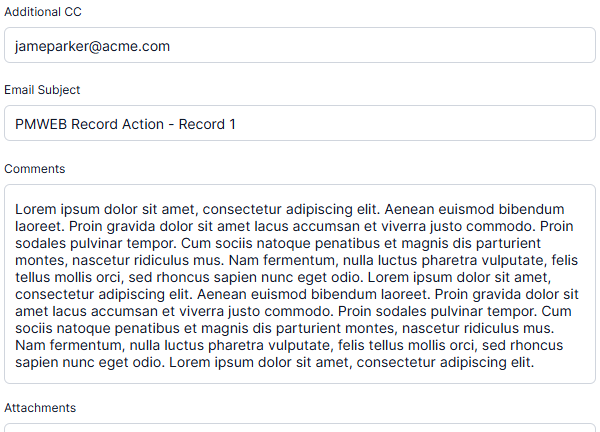
Add information to the workflow email that will be sent when you submit
-
Preview the workflow email
-
Execute the Submit action
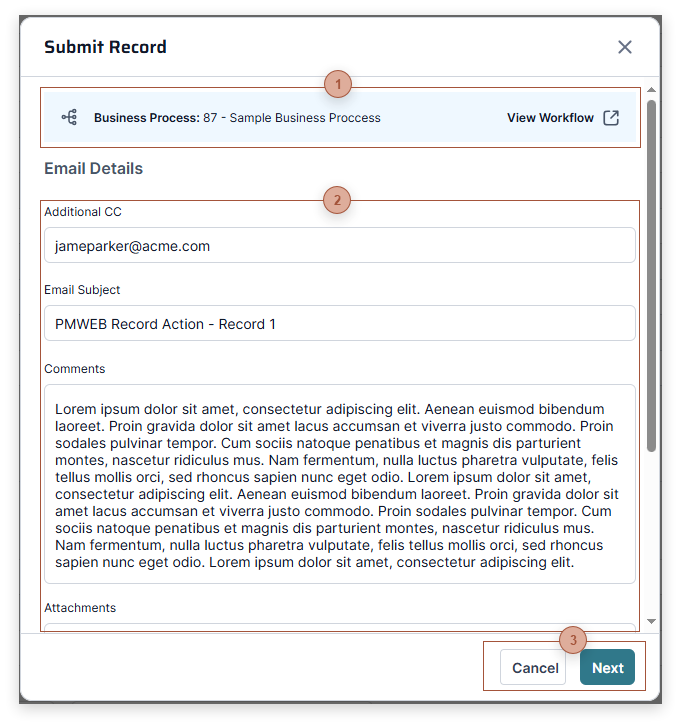
 Business Process Bar The title of this bar shows the Visual Workflow business process that will be assigned to the record when you finish the Submit action. Click the View Workflow button to open the View Workflow Dialog.
|


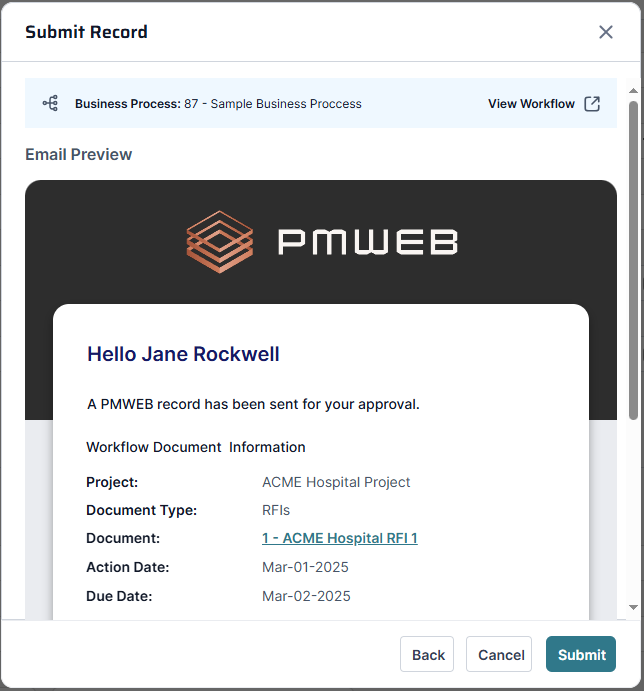
Click the Submit button to complete the process. The dialog closes and the record is submitted. A confirmation banner appears in the record, showing that the Submit process is complete:
