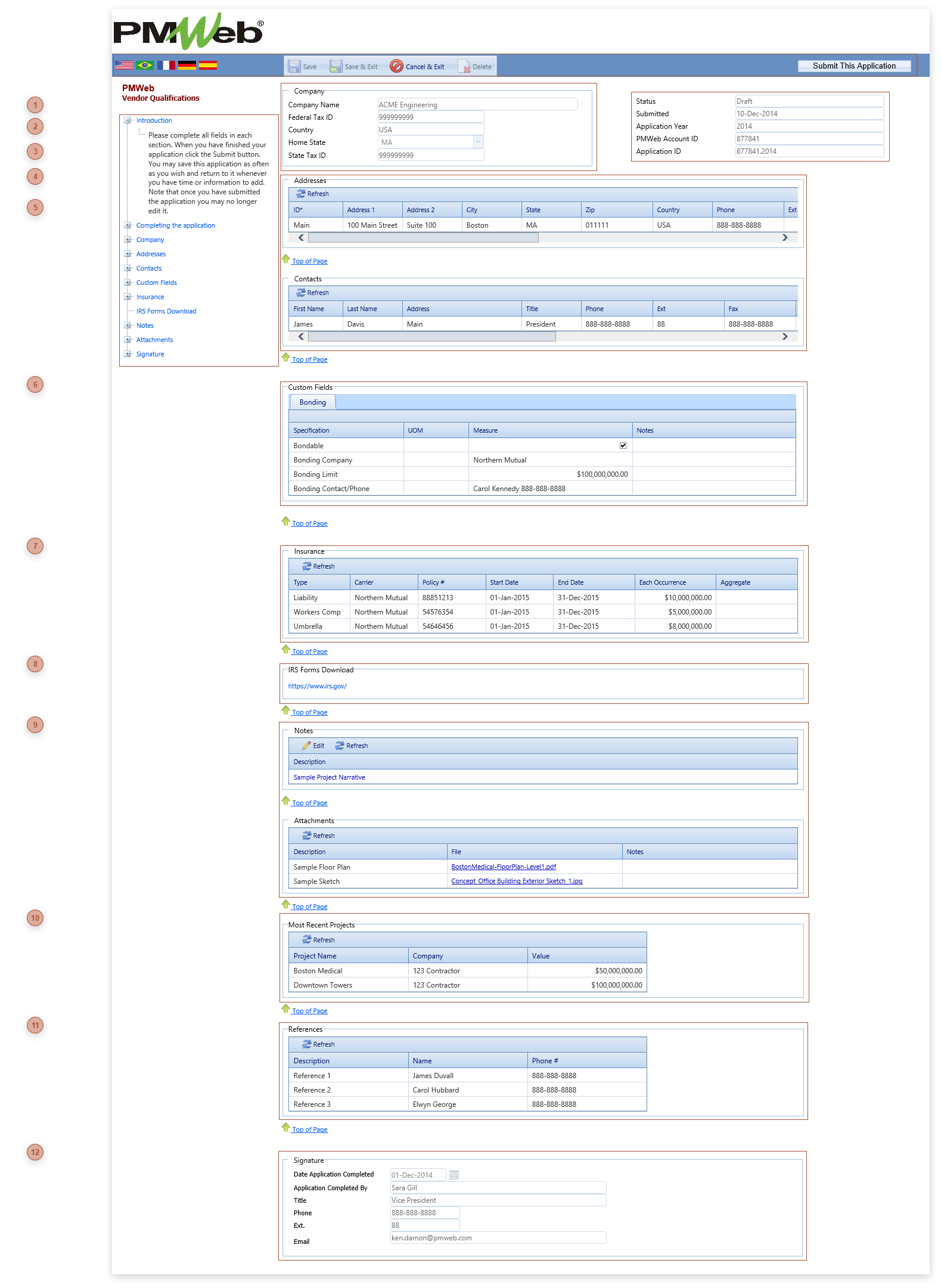
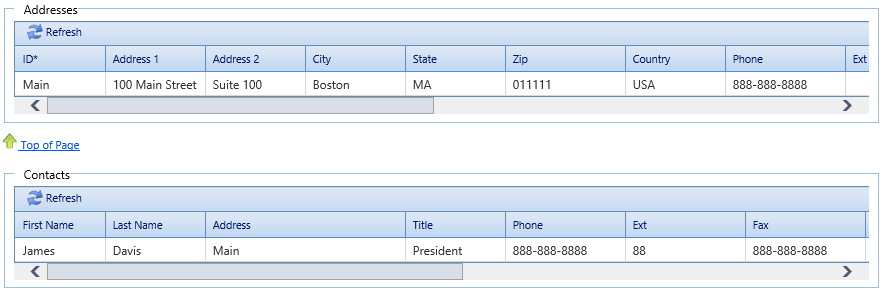
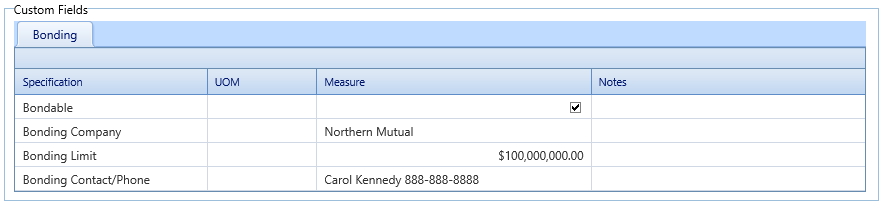
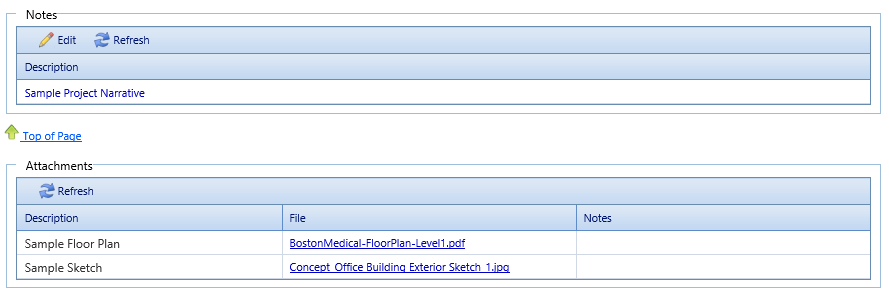
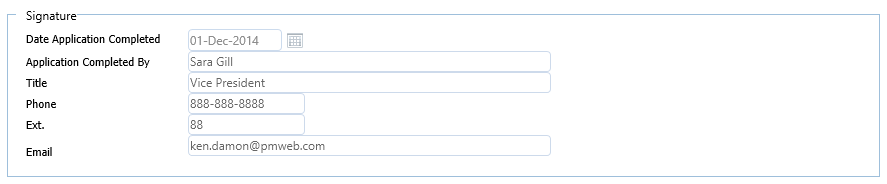
A sample application page is show in this topic.
 LANGUAGE ICONS
-
Language Icons - Users can select a language for the page. The items translated are the field labels that are part of PMWEB's language manager. The help files appear in the language they are edited in in the Section Options. -
Save Button - Click to save the application.
-
Save & Exit Button - Click to save the application page and navigate to the applicant's account page.
-
Cancel & Exit Button - Click to navigate to the applicant's account page without saving unsaved changes.
-
Delete Button - Click to delete the application.
-
Submit Application Button - The applicant clicks this button to mark the application as "Submitted" and activate the Vendor Prequalification record inside PMWEB.
|
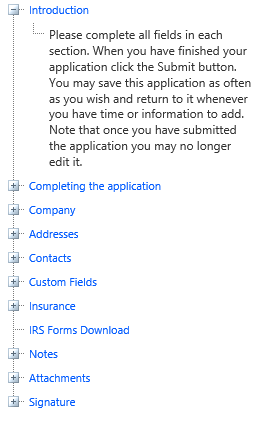
 HELP TREEThis tree shows the two system help topics as well as the custom help topics associated with each section.
|
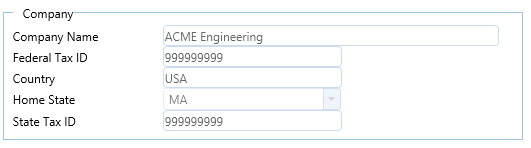
 COMPANY FIELDSRead only. This information is from the applicant's account page.
|
 STATUS FIELD
-
-
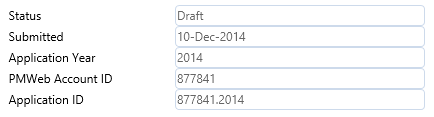
Submitted Field - Read only. The date the Submit This Application was clicked.
-
Application Year Field - Read only. The year the application was started.
-
PMWEB Account ID Field - Read only. The applicant's account ID, assigned by PMWEB.
-
Application ID Field - Read only. The Account ID and the Application Year.
|
 CUSTOM TABLE EXAMPLESThese are two examples of custom tables without locked lines.
|
 CUSTOM FIELDS TABLEEach specification group selected to display will appear as a tab here.
|
 CUSTOM TABLE EXAMPLEThis is an example of a custom table with three locked lines.
|
 CUSTOM LINKS TABLEThis is an example of a Links section
|
 SYSTEM TABLES |
 CUSTOM TABLE EXAMPLEThis is an example of a custom table without locked lines.
|
 CUSTOM TABLE EXAMPLEThis is an example of a custom table with three locked lines.
|
 SIGNATURE FIELDSThis is a system field section which can be shown or hidden in Section Options. |