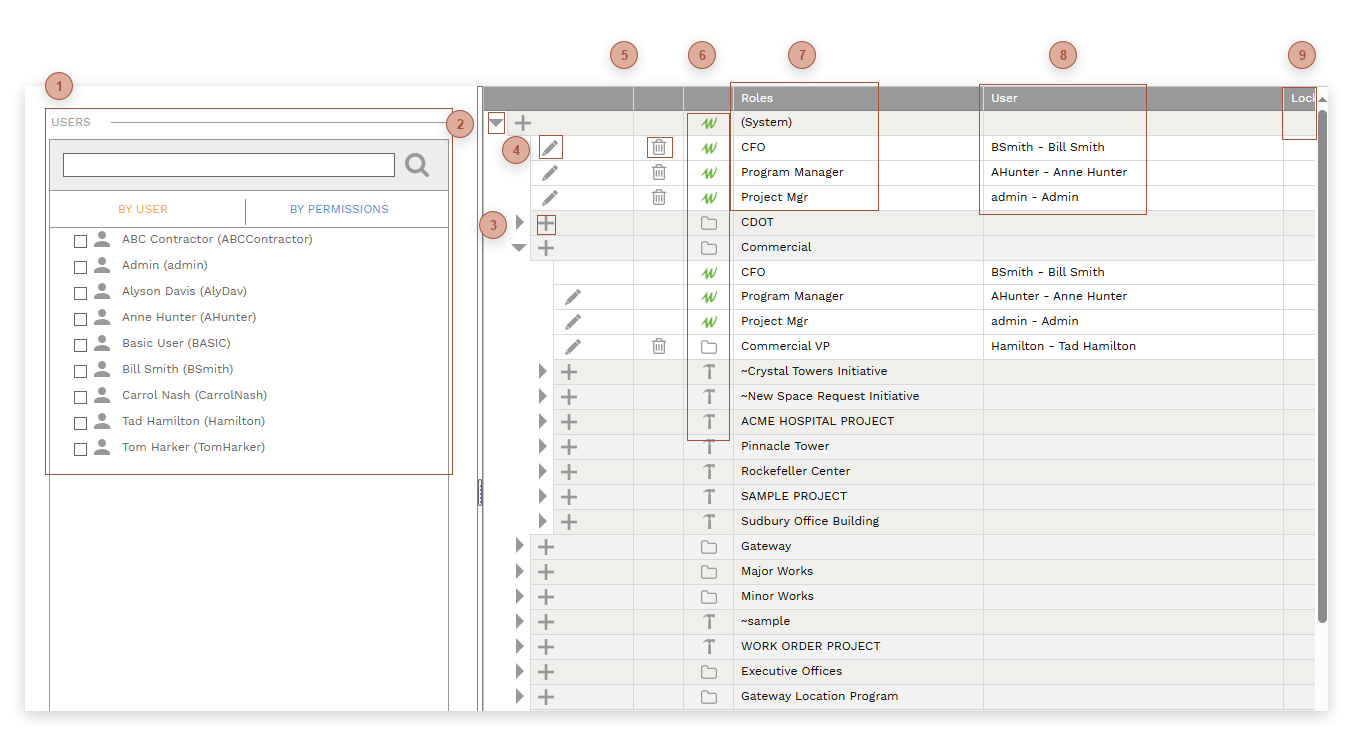
Use this page to view, define, and assign Visual Workflows at all levels: System, Program, and Project. Note that the actions performed here can also be performed on the Roles Tab of Workflow Setup but there you can only work at one level at a time.
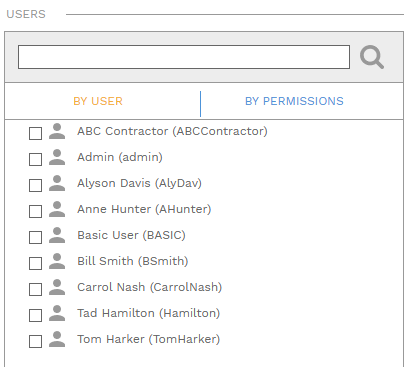
 USERS SECTIONUse the search field to limit the users shown. The By User tab shows users individually while the By Permissions tab groups them by User Group and shows the security level assigned to them. Drag a user from this tree and drop it on a role to assign it. Or, click on a role in the assignments tree to select, check the box next to a user, and then click the button to send it to the assignments tree.
|
 EXPAND/COLLAPSE BUTTONClick this button to expand or collapse the table on a level.
|
 ADD ROLE BUTTONClick this button to add a new role at that level.
|
 EDIT ROLE BUTTONClick this button to open the role in edit mode
|
 DELETE ROLE BUTTONDeletes the role. Roles that are used in one or more BPM cannot be deleted. The Delete Role button only appears at the level at which it was defined.
|
 LEVEL ICONIcons in this column indicate the level at which the role was defined: system, program/location, or project
|
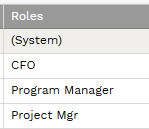
 ROLES FIELDThe description of the role
|
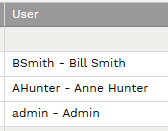
 USER FIELDThe user assigned to the role
|
 LOCKED CHECKBOXIf this box is checked a user can only be assigned to it at the level at which the role was defined.
|
|