Project Center Tab
This tab displays a snapshot of one project at a time. Project data is refreshed each time the tab is loaded.
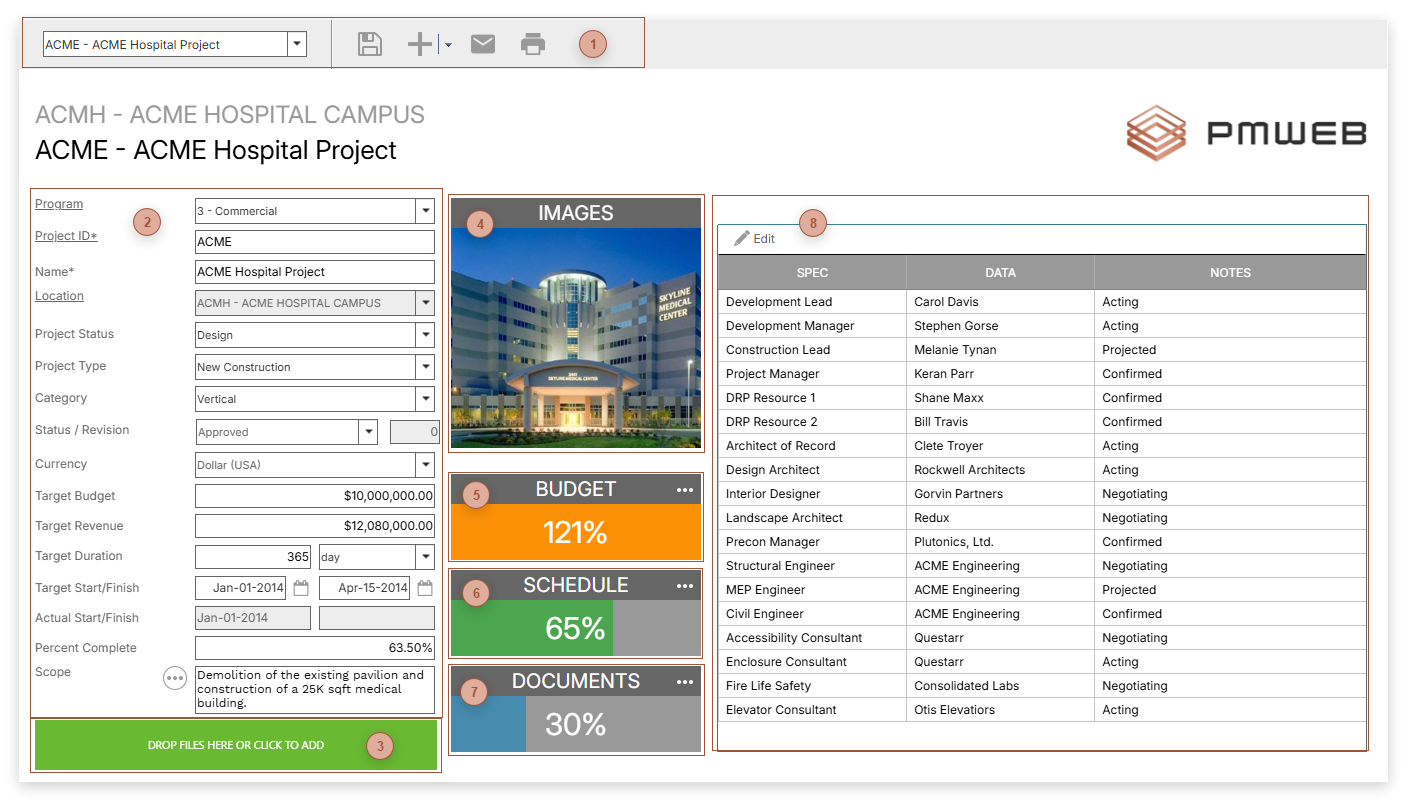


 PROJECT FIELDS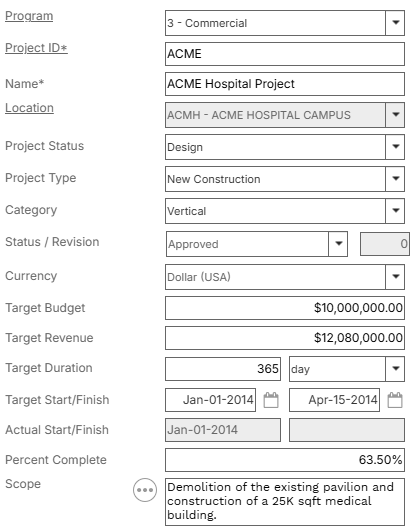 This section contains a subset of the fields found in the record in the Projects page. Three field labels are hyperlinks:
|


 IMAGE ROTATOR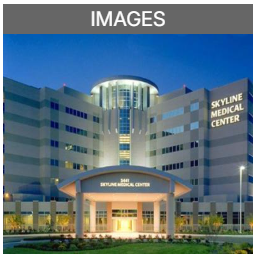 Images from the Image Gallery, set to rotate view.
|
 BUDGET CHART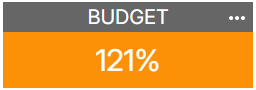 This chart shows how well the project is doing vs. the target budget. The calculation is the difference between Target Budget and Anticipated Cost, as a percentage. If there is no Target Budget, this control does not show. Click the Budget bar to navigate to the default Cost Worksheet for the project.
|
 SCHEDULE CHART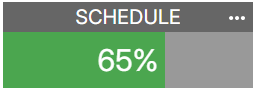 This chart shows how the project is doing vs. the target finish. The calculation is the difference between the Target Start and Target Finish vs. Early Start and Early Finish in the project schedule, as a percentage. If there is no project schedule, this control does not show. Click the Schedule bar to navigate to the project schedule in the Schedules page.
|

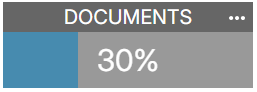
 SPECIFICATIONS TABS / NAVIGATOR SECTION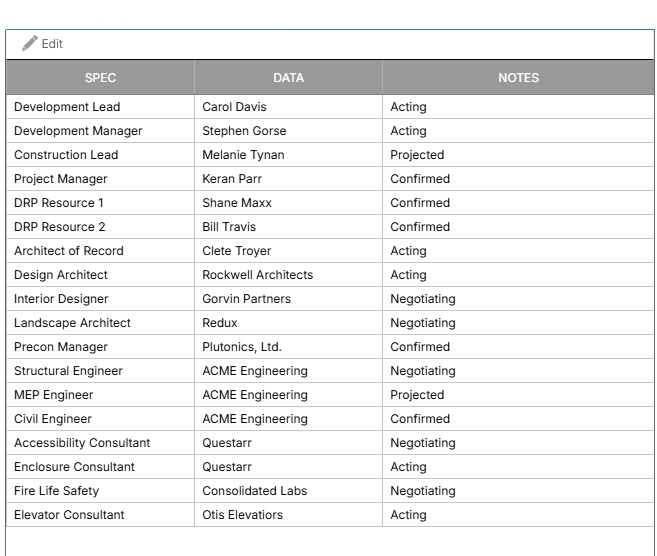 This section of the Project Center serves a dual purpose. It shows both Specifications Tabs for the project as well as the Document Navigator:
 Click the Documents bar (see previous item) to toggle between the two views.
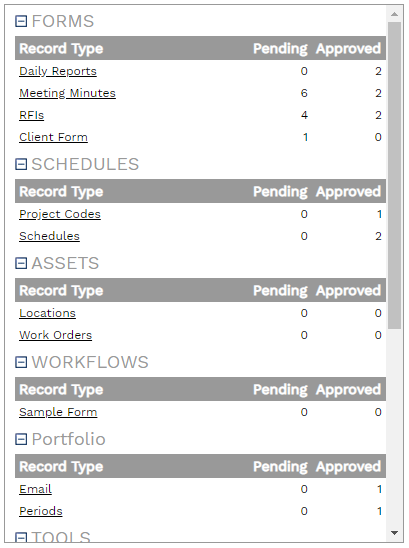
The Document Navigator shows all records in Workflow for the project, grouped by approved or pending status. Clicking the record type hyperlink navigates to the Manager Page for the record type, filtered by the current project.
|