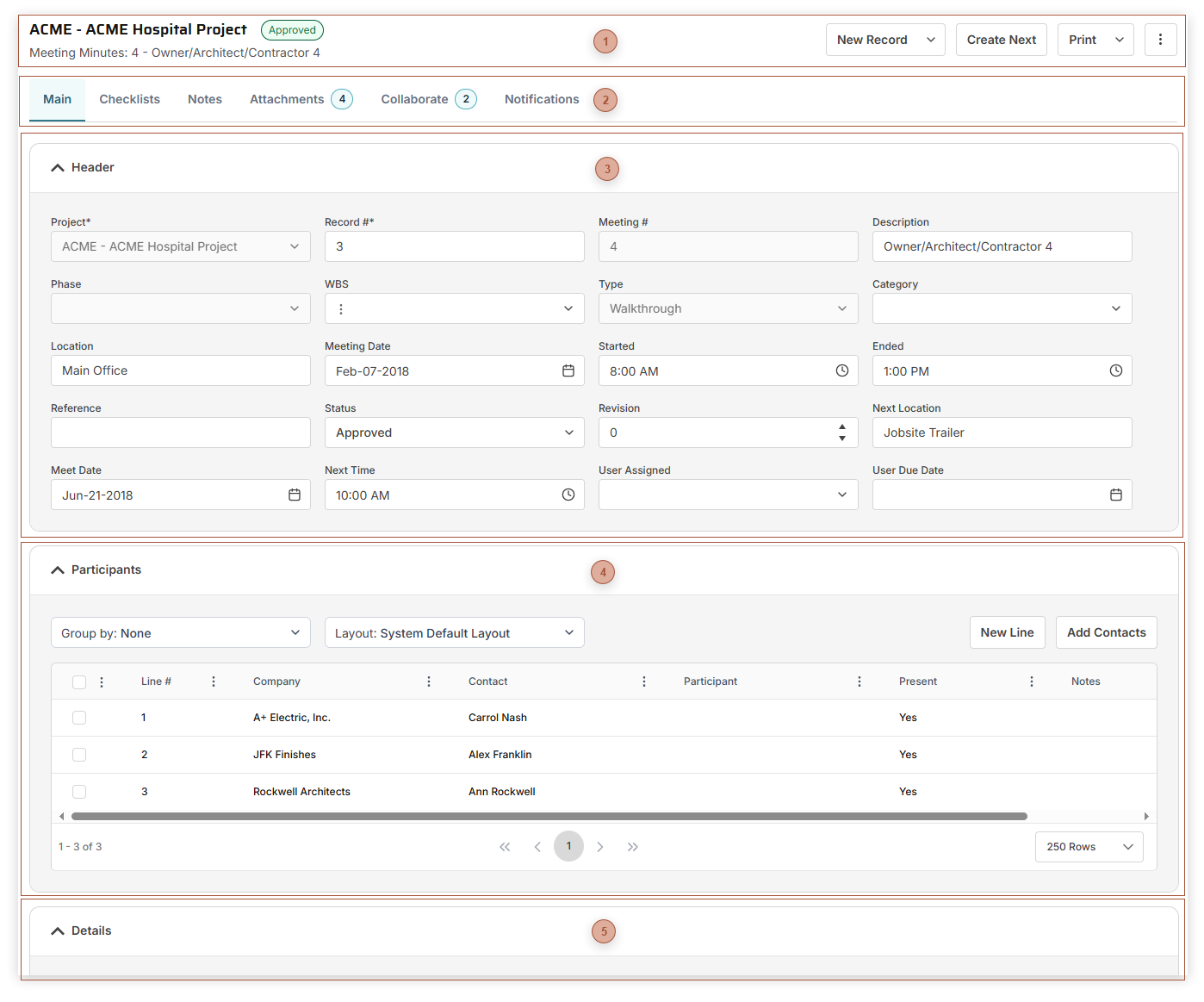
Use Meeting Minutes records to record the discussion, assignment, and completion of meeting items for your projects. Meeting Minutes are treated as a series of records, defined by the combination of Project and Type, and numbered accordingly.
 Page Title SectionCreate Next Button - This button is only visible if the record has a Status of "Approved" and is the highest Meeting # in the sequence. When you click this button a new record is created with much of the header data from the current record copied into the new one. The Meeting # is incremented by one. In addition, lines in the Details Table that are not marked Done are copied to the new record.
|
 Record Tabs |
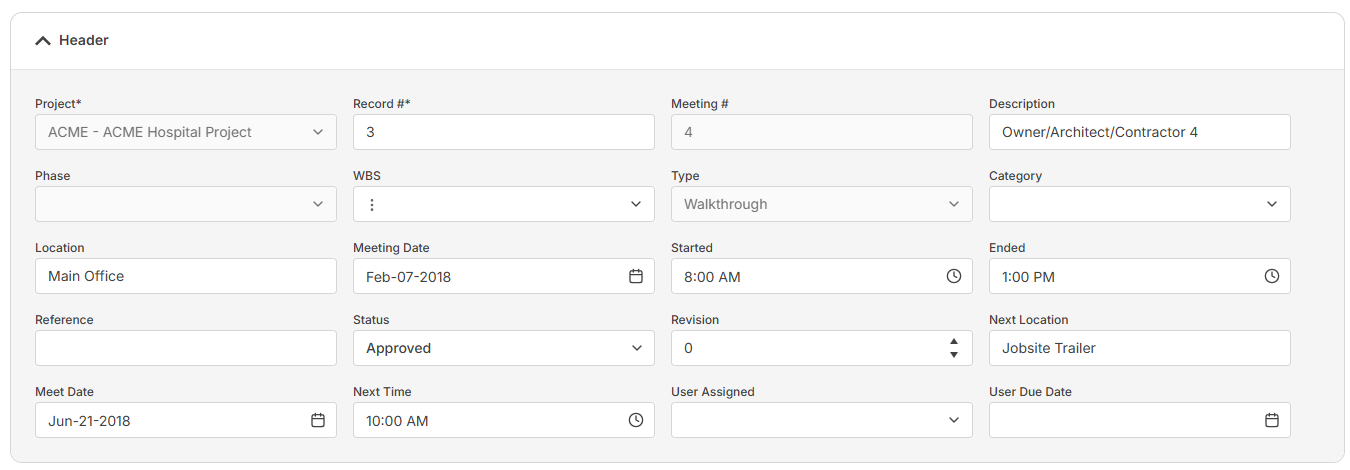
 Header Fields Section
The fields shown depend on your security settings and may include:
-
-
Record # Field - Required. An alphanumeric ID for the record
-
Meeting # Field - Read only. This sequential number is assigned by PMWEB based on the combination of Project and Type.
-
-
-
-
-
-
Location Field - Type a meeting location field
-
-
-
-
-
Next Meeting Location Field - Type the location of the next meeting in the sequence here
-
-
-
-
|
 Participants SectionThis section can be collapsed or expanded. Add as many lines to the table as you wish.
|
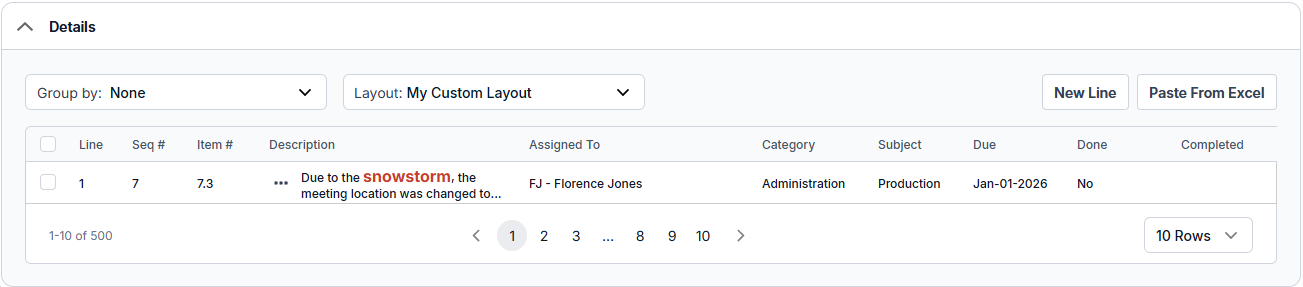
 Details Table
The fields shown in this table vary depending on your security settings and the selected layout and may include:
-
Item # Field - Read only. This number, assigned by PMWEB, is composed of two segments. The first segment is the Meeting # in the header of the record. The second segment is the Seq # from the line. -
Seq # Field - A unique ID for the line -
-
-
-
-
Subject Field - Type a subject for the line here.
-
-
-
Status Field - Select a status from the list
-
-
-
Done Field - Mark the line as done
|