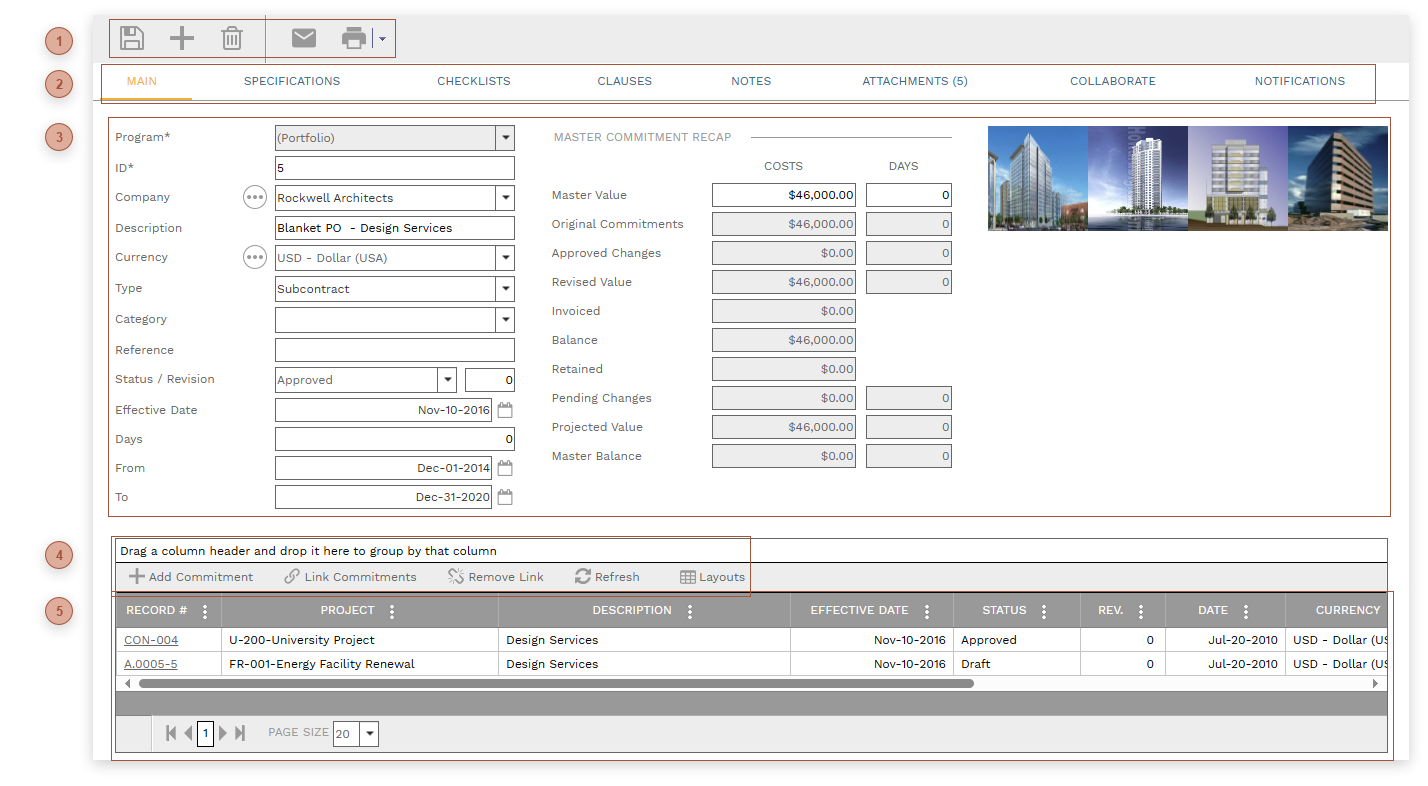
Master Commitments allow you to link together any number of
Commitments and monitor their totals. New commitments can be created and existing commitments can be linked from this page.
 HEADER TOOLBAR
|
 RECORD TABS
|
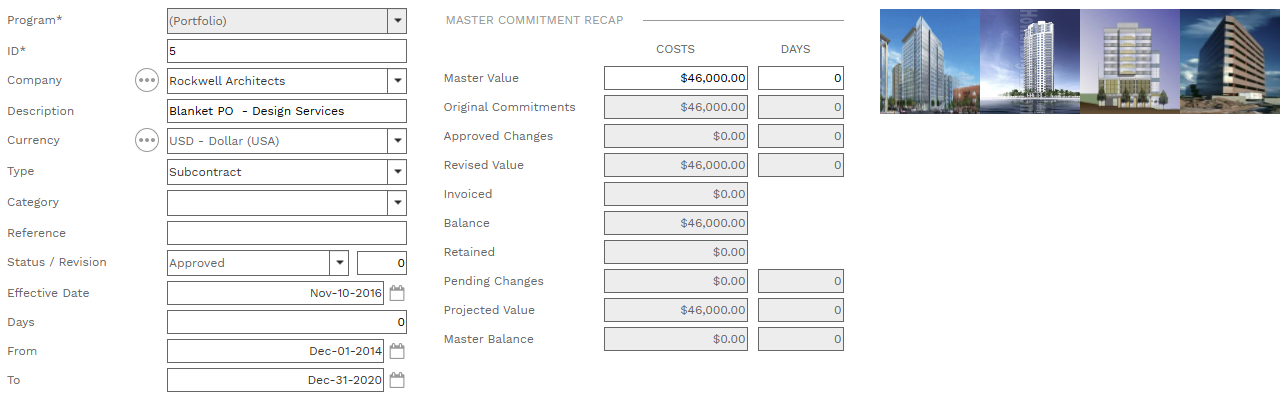
 HEADER
-
-
ID Field - Required. An alphanumeric ID for the record. -
-
-
-
Type Field - Type Field. This list contains two values - "Subcontract" and "Purchase Order" which cannot be edited or deleted.
-
-
-
-
Date Field - Read only. The date the record was created.
-
-
-
-
Master Commitment Recap Section - The Master Value Costs and Master Value Days fields can be edited as notations of the anticipated totals. All other fields in this section are read only and display summary data from the commitments linked to the Master Commitment record.
-
|
 DETAILS TABLE TOOLBAR
-
Add Commitment Button - Clicking this button creates a new record in the Commitments page and opens it for editing. Some of the information from the master commitment is automatically added to the commitment and the commitment is linked to the master.
-
Link Commitments Button - Clicking this button opens the Link Commitments dialog. Select one or more commitments using the checkbox and then click the Save to Record button. The dialog closes and the commitment you selected appears in the table.
-
Remove Link Button - Clicking this button removes the link between the master commitment and all lines selected in the table.
|
 DETAILS TABLE
All fields are read-only.
-
Record # Field - Click the hyperlink to navigate to the linked record. -
-
-
-
-
-
-
Original Value - From the Commitment
-
Approved Changes - From the Commitment
-
Revised Value - From the Commitment
|