Link Schedule Dialog
Use this dialog to link a PMWEB schedule to a Primavera P6 or MS Project schedule. Revisions to the external schedule can be uploaded at any time and used to update the PMWEB schedule.
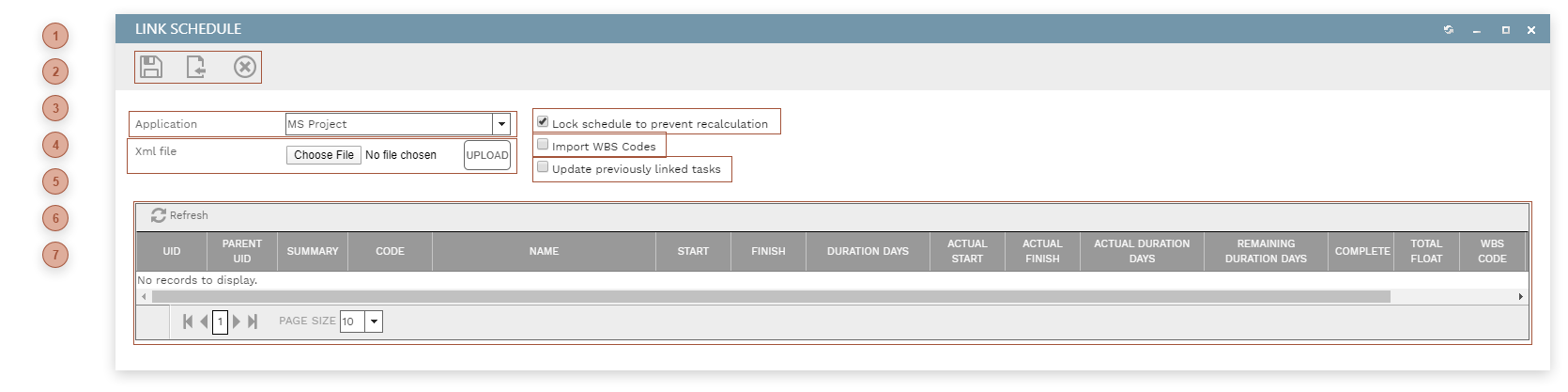


 APPLICATION FIELD Select one from the drop-down list:
If you select "MS Project" or "Primavera XML" the next step is to upload an XML file. If, however, you select "Primavera" the screen appears like this:
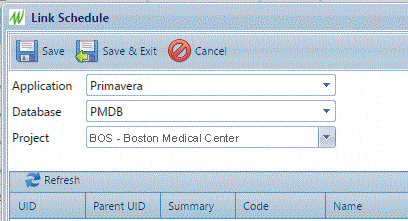 Select a P6 database and then select a project.
|






 UPDATE CHECKBOX If this box is checked, when revisions to the external schedule are uploaded tasks that have not been "unlinked" (see Scheduling/Schedules/Linked Schedule Tab) will be updated with the latest data.
|
 TASKS TABLE This table displays lines uploaded from the external schedule file. In the screenshot above the white line indicates a task that has been "unlinked" (see Scheduling/Schedules/Linked Schedule Tab).
|