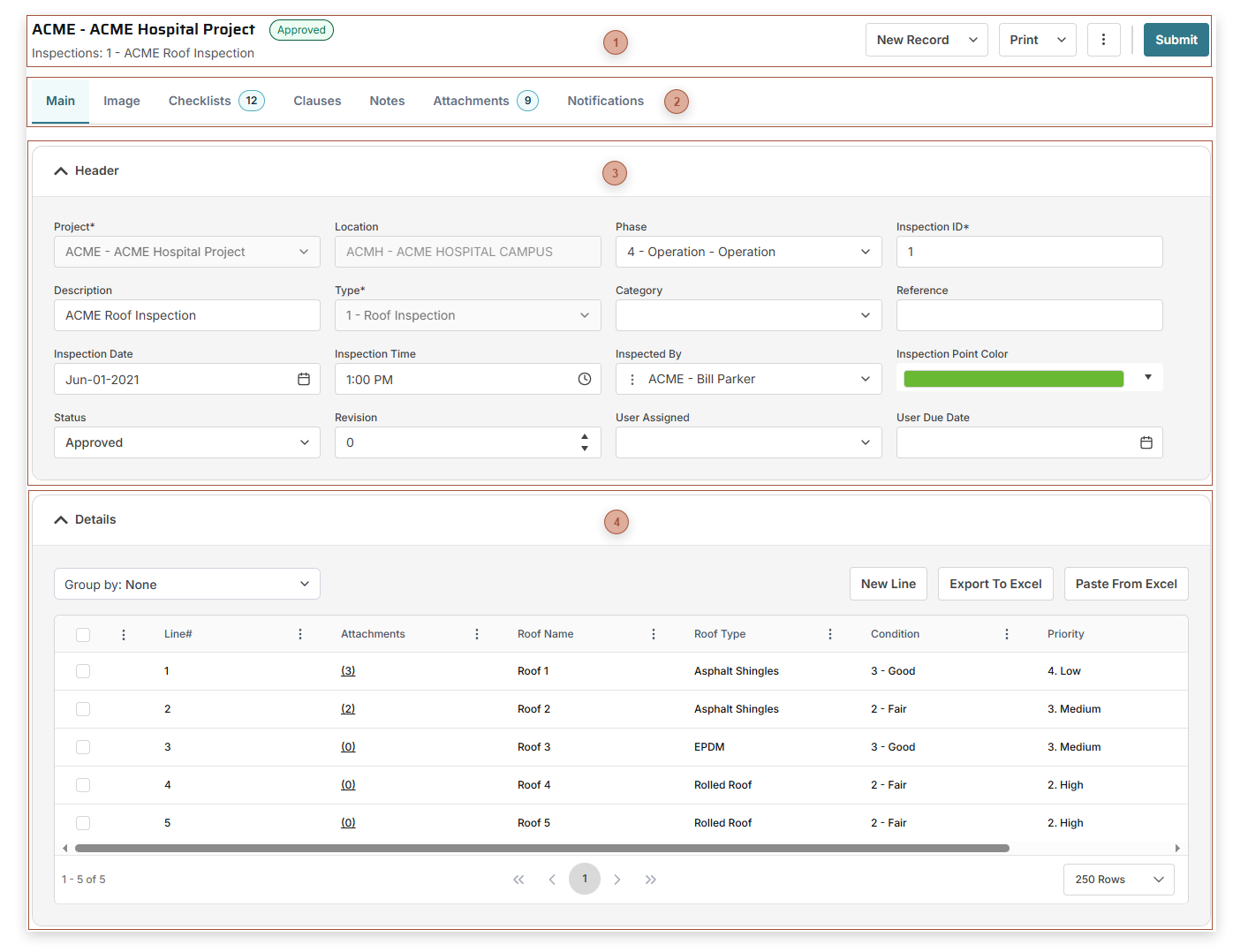
With PMWEB Inspections you can assess the state of anything you want, using criteria that you define yourself. Interactive inspection points can be placed on images if you wish and you can use an inspection to automatically generate Work Requests, Work Orders, Initiatives, and Projects. Before creating Inspection records you must first create at least one record in Inspection Types.  Page Title Section-
More / Generate - Select this to generate a linked Work Request, Work Order, Initiative, or Project
-
Update Assets Button - Clicking this opens a confirmation dialog. If you click OK in the dialog, Condition and Condition Date data from each asset in the Details table will be sent to the linked asset record in the Assets module. Note: The Update Assets button only appears when the record is approved and there is one or more linked assets in the Details table.
|
 Record Tabs |
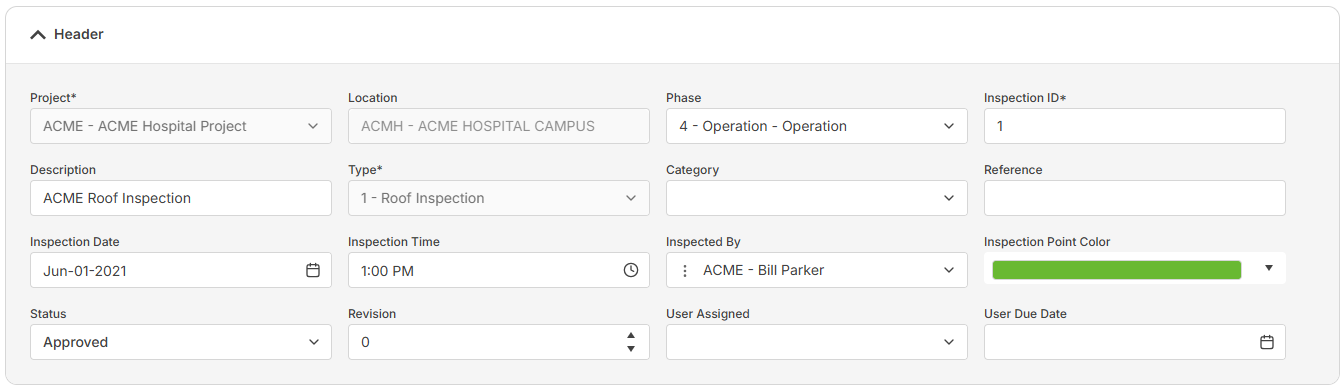
 Header Fields SectionThe fields shown vary depending on your security rights and may include:
-
-
Location Field - Read only. The location linked to the selected project.
-
-
Inspection ID Field - Required. An alphanumeric ID for the record.
-
-
Type Field - Required. The types here are defined in Inspection Types. The selection here determines what data fields appear in the Details Table. If lines exist in the Details Table, this field is read only.
-
-
-
-
-
-
-
Inspection Point Color Field - The selection here determines the color of points in the Image Tab.
-
-
-
|
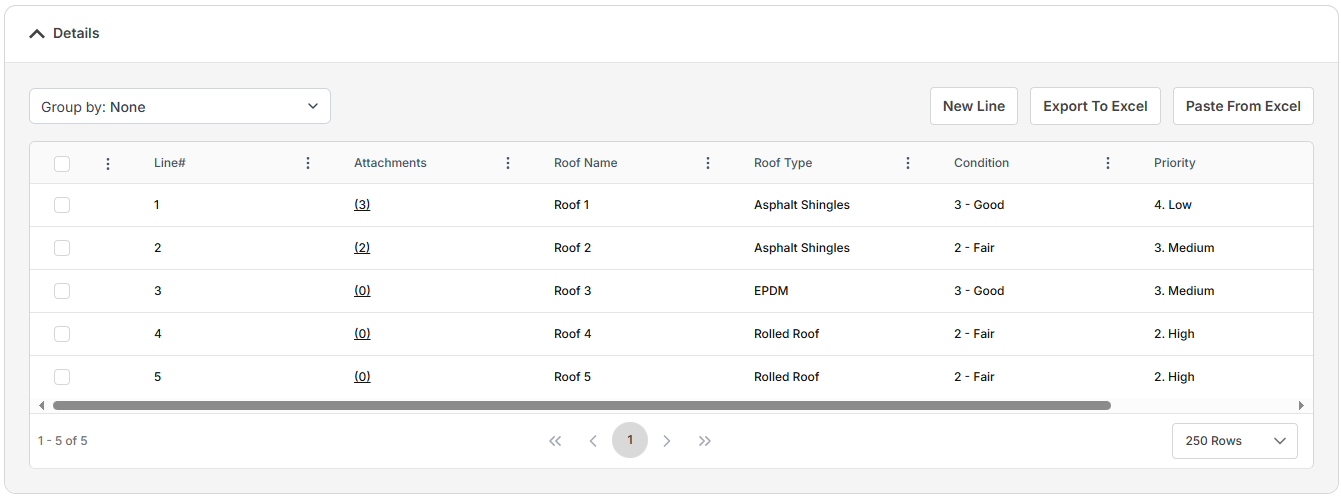
 DETAILS TABLEThe fields that appear in this table are determined by the design of the Type selected in the header. See Inspection Types for more information.
|
|