Dispatch Board
Drag Work Orders from the table at the bottom of the page and drop them on resources to create appointments. See also Configure Dispatch Boards. Appointments created here can update the Work Orders Resources Tab.
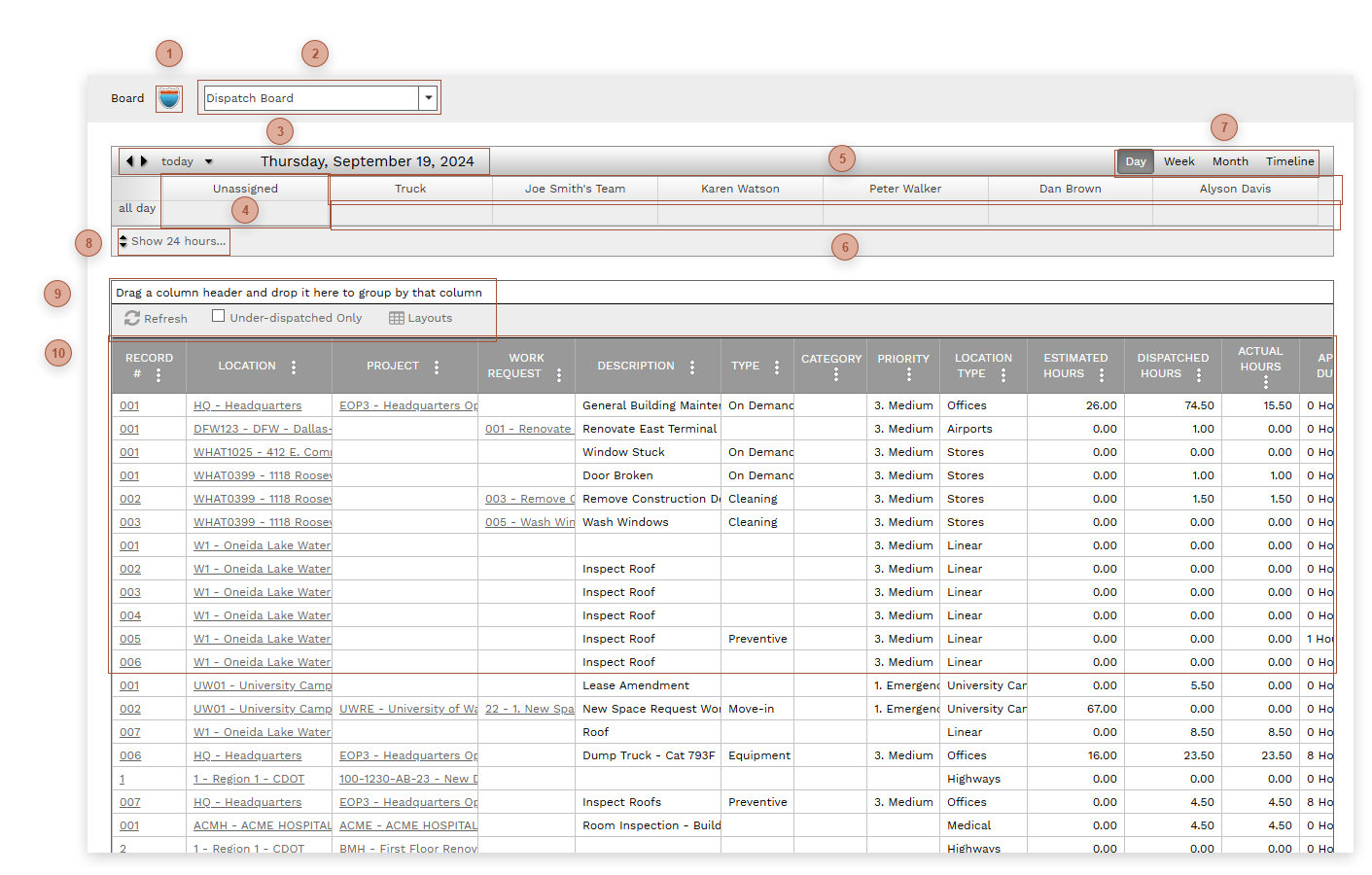
 MAP VIEW BUTTON Click this button to open the Map View in a dialog box.
|
 BOARD SELECTOR Select a dispatch board to load in the page. See Configure Dispatch Boards for information about creating dispatch boards.
|



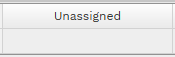
 RESOURCE COLUMNS Resource columns. Drop work orders here to create work order appointments for the resource. The resources that appear here are determined by settings in the Configure Dispatch Boards page.
|
 WORK ORDER ASSIGNMENT A work order appointment is created by dropping a work order from the table on a resource column. Appointments can be lengthened or shortened by dragging the resize handle. Appointments can be dragged from one resource column and dropped on another and dragged up or down in a column to change the start and finish times. Double click on an appointment to navigate to the Work Orders record.
|


 SHOW 24 HOURS... TOGGLE Click this button to override the Default Hours setting in the Configure Dispatch Boards page. Click a second time to return to the default hours.
|
 WORK ORDERS TABLE TOOLBAR Refresh - Redraws the screen to show the latest data.
Under-dispatched Only - If this box is checked, only work orders where Estimated Hours are greater than Dispatched Hours will be shown in the Work Orders table.
Layouts - Layouts Button
|
 WORK ORDERS TABLE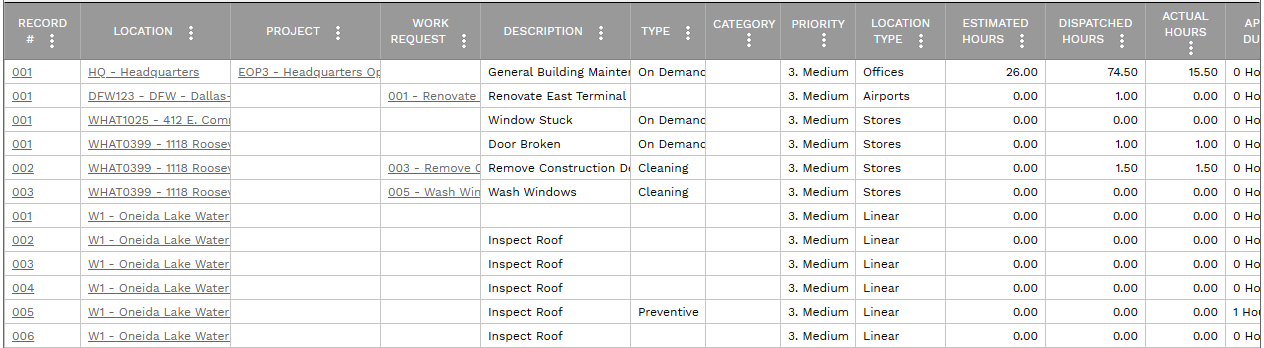 Drag work orders displayed in this table and drop them on resource columns to create work order appointments. Use sorting, filtering, and grouping to find specific work orders and use the Layouts Button to save data views. Click the hyperlinks in the Record, Location, and Project fields to navigate to those records.
|